Category: Wordpress

  • A WordPress-Nextcloud writing workflow

    I spend a large part of my time working on my website, which is an essential part of my business. The site is about the history of Venice, considered very widely, and a lot of studying and drafting goes into it.

    My main website is self-hosted WordPress, but WordPress is not sufficient for what I do.

    The preparatory work going into writing for the website, requires space for literature, sources, images, maps, notes, brainstorming drafts and much more.

    If I tried to do that in WordPress, it would be an unwieldy mess of uploaded gigabytes of PDFs and other files, which I would have to keep locally too.

    A private Nextcloud instance is a much better solution.

    With Nextcloud, I have a web-interface to the files with a set of remote apps and functions available, but I also have all the files locally. The synching is fast enough to allow me to switch between remote and local apps without any real problems.

    The basic writing-publishing process

    As I do my History Walks in Venice, I sometimes get questions I haven’t got before, or see things I hadn’t noticed before.

    That will send me back to my books to find an answer. More often than not, I’ll stumble over something else in the process, which might be worth my time later. Consequently, I often have many articles in the pipeline at any one time.

    The process is more or less this:

    1. Reading notes, odd ideas and what not goes into Nextcloud Notes, either as plain text or Markdown formatted. There’s a handy Nextcloud Notes app for the phone, there’s the normal Nextcloud web interface, and the files are mirrored on my computers. I therefore have easy access to these files anywhere, and can edit them with just about anything.
    2. Once a theme for an article or newsletter coagulates, I move the note to the Drafts folder in Nextcloud, and start finding images, making maps, compiling lists, translating sources or whatever is needed to back up the article. Any writing here also happens in Markdown format. I use whatever program I feel like to edit these files. Common choices are the rich-text editor in Nextcloud, Emacs or Apostrophe, but it is a simple text file which can be edited with any editor.
    3. I don’t always know exactly where a text will go on the website, as I have several custom post-types: posts, articles, newsletters, translations, and so on. Often the text will therefore enter as a custom ‘Scratchpad’ post-type, where I can do all the preparations for publishing, such as uploading images, tagging names and places, entering the bibliography, adding footnotes and such.
    4. When I’m done, I move the ‘Scratchpad’ post to the section of the site where it belongs, and schedule it for publishing. If it’s a newsletter, there’s a separate procedure to send that to the subscribers.
    5. Once the article is published on the website, I add links to it from older existing articles, where relevant. For this, I use two custom plugins. One tracks the internal linking structure of the site, so I can easily see which posts link to which, and another which implements a unified search function across all post-types.
    6. The last thing to do is sharing the article on social media. I do this manually, as most walled garden social media has made automated procedures even more cumbersome.
    7. The last last thing, is to move the article draft folder to the folder for published posts, with the date of publishing added to the folder name. If, for some reason, I need to return to the article later, I can easily find everything I used there.

    WordPress and Markdown

    In the early phases, I write in Markdown, but when the text enters WordPress it becomes HTML.

    This is automatic. I very rarely need to do anything.

    When writing in Markdown, I only use the basics: headers, links, bold, cursive, lists, and quotes. I never add images to the Markdown files, and I usually also stay clear of tables.

    To move a Markdown text into WordPress, I simply copy the Markdown formatted text to the clipboard, and paste it into the Gutenberg on WordPress. The Gutenberg block editor will automatically convert Markdown formatting into Gutenberg blocks, and it does a decent job.

    I don’t mind the Gutenberg block editor. It is great for all the visual aspects of how an article is presented, but it doesn’t suit me well for the earlier phases of writing.

    Markdown is perfect for that.

    If I need a distraction-free environment, I can do that easily with the Nextcloud editor or Apostrophe. If I need to do complicated search and replace, or very repetitive operations, or sometimes just anything but churning out words, I use Emacs.

    Writing aids

    English is not my native language, so it is easy to make mistakes.

    Initially, I used the integrated writing aids of the WordPress plugin Yoast SEO. They are, however, rather limited, and they forced me to do more of my workflow in WordPress than I cared for.

    Searching for something else, I discovered LanguageTool, which I find more useful. It offers me many more corrections, and it works in more contexts.

    It works in almost anything browser-based, so it’s there in the Gutenberg editor, and in the rich text editor of Nextcloud. I can also use it in LibreOffice and Thunderbird, with the necessary extensions.

    Why self-hosted?

    It has always been my preference to run my own services. I simply don’t trust big foreign corporations with all my data.

    The problem isn’t as much the confidentiality of the material, which is very low, but the amount of time I have invested in collecting, organising and writing everything.

    It would be very disruptive for my work to get kicked out of my digital office and library by some AI algorithm which mistakes a Renaissance painting by Titian of a nude girl for child pornography,

    In principle, any such provider could shut me down for anything, even a copy of a painting. If that sounds ridiculous, be assured that more ridiculous stuff has happened, and that you’ll have no recourse.

    I would have to keep copies of everything offline somewhere anyway, so what’s the point.

    One last point, in these times of AI — which is an illogical abbreviation for Automated Plagiarism — I don’t want everything I do to be used to train the AI models of big corporations.
  • Hyphens and dashes in WordPress

    I’ve often been uncertain about what WordPress does with one or more hyphens in various contexts, and even looking at the code of wptexturize is that useful — not all code is poetry.

    One or more hyphens can produce a single hyphen (-), an en dash (–) or an em dash (—), but it’s not entirely straightforward.

    TL;DR

    A single hyphen becomes an en-dash if surrounded by spaces. Otherwise, it remains a hyphen.

    Double hyphens become an em-dash if surrounded by spaces. Otherwise, they become an en-dash.

    Triple hyphens always become an em-dash.

    Common usage

    Number ranges with en-dashes require double hyphens, as in 5–6. Otherwise, you’ll get a hyphen, like 5-6.

    Em-dashes used as punctuation—normally without any spaces around—need to be entered as triple hyphens. If used with spaces around — which is not the common usage, however — double or triple hyphens work the same.

    See — for example — How to Use Em Dashes (—), En Dashes (–), and Hyphens (-) on Merriam-Webster.

    Test tables

    Single hyphens

    InputOutputResultNote
    -–en dashalone
    word-wordword-wordhyphensurrounded by letters
    word - wordword – worden dashbetween words with spaces
    word- wordword- wordhyphenspace after
    word -wordword -wordhyphenspace before
    5-55-5hyphenbetween digits
    5 - 55 – 5en dashbetween digits with spaces

    Double hyphens

    InputOutputResultNote
    --—em dashalone
    word--wordword–worden dashsurrounded by letters
    word -- wordword — wordem dashbetween words with spaces
    word-- wordword– worden dashspace after
    word --wordword –worden dashspace before
    5--55–5en dashbetween digits
    5 -- 55 — 5em dashbetween digits with spaces

    Triple hyphens

    InputOutputResultNote
    ---—em dashalone
    word---wordword—wordem dashsurrounded by letters
    word --- wordword — wordem dashbetween words with spaces
    5---55—5em dashbetween digits
    5 --- 55 — 5em dashbetween digits with spaces
  • ActitivityPub and DDOS

    ActitivityPub and DDOS

    On a work related web site I made two posts on January 15th, at 7.35 in the morning.

    In the following few hours my tiny server took quite a beating, at least compared to what it normally gets. The activity was sufficient to make the site periodically unresponsive.

    It is not the first time this happens, and it is related to ActivityPub.

    For those interested, the website is History Walks Venice, and the Mastodon handle is @info@historywalksvenice.com.

    The Problem

    The main problem I encountered was that my websites went unresponsive for periods after the two scheduled posts were published at 7:35.

    It didn’t happen immediately, and it wasn’t all the time.

    The problem persisted for a couple of hours.

    When I first noticed, I was walking the dogs, so I couldn’t inspect the server immediately. When I came back, the sites were responding again, but then it happened a few times more.

    Traffic

    The table below shows the number of hits with a User-Agent containing the word Mastodon, aggregated by the hour for the entire morning.

    This data is from the Apache access log.

    HourTotal requestsMastodon requests% Mastodon
    61117747%
    73048178959%
    86060397866%
    95238341965%
    1017821337%
    111659651%

    Mastodon instances are generating quite a bit of traffic, which is to some extent also the intent and purpose of sharing posts on the Fediverse.

    The spikes are even more localised that the table above indicates. For example, in the period 8:00-8:59 there were 1194 Mastodon requests in the single minute 8:23, 947 requests at 8:00, 409 at 8:14 and 350 at 8:32. That is half the requests for that hour, in four separate minutes. In the period 9:00-9:59 a total of 3178 requests arrived between 9:04 and 9:07.

    The traffic spikes are not because of a huge following. The site has about thirty followers. However, the posts did mention a group with over 4K followers, which must have widened the reach substantially. Again, this is what I wanted.

    Instances

    All in all some 766 Mastodon instances chimed in, most of which only made a dozen or so requests. Only 17 instances made twenty or more requests, 589 made 10–19 requests, and 160 made less than ten requests.

    Here is the top ten in terms of requests to my server in those six hours:

    InstanceRequestsTop101Followers
    https://mastodon.world/4919Yes
    https://red.niboe.info/195
    https://mastodon.social/841Yes
    https://nafo.uk/44
    https://pawoo.net/312
    https://mastodon.green/28
    https://nerdculture.de/27
    https://mstdn.jp/243
    https://mozilla.social/24
    https://corteximplant.com/23

    The instance mastodon.world alone made over 150 requests/hour to my site for a period of 3 hours, all because of two posts.

    The second, red.niboe.info, appears to be a Spanish language, invite-only instance.

    Why the difference? I suspect it has something to do with how the instances cache the results of lookups on other instances.

    Requests

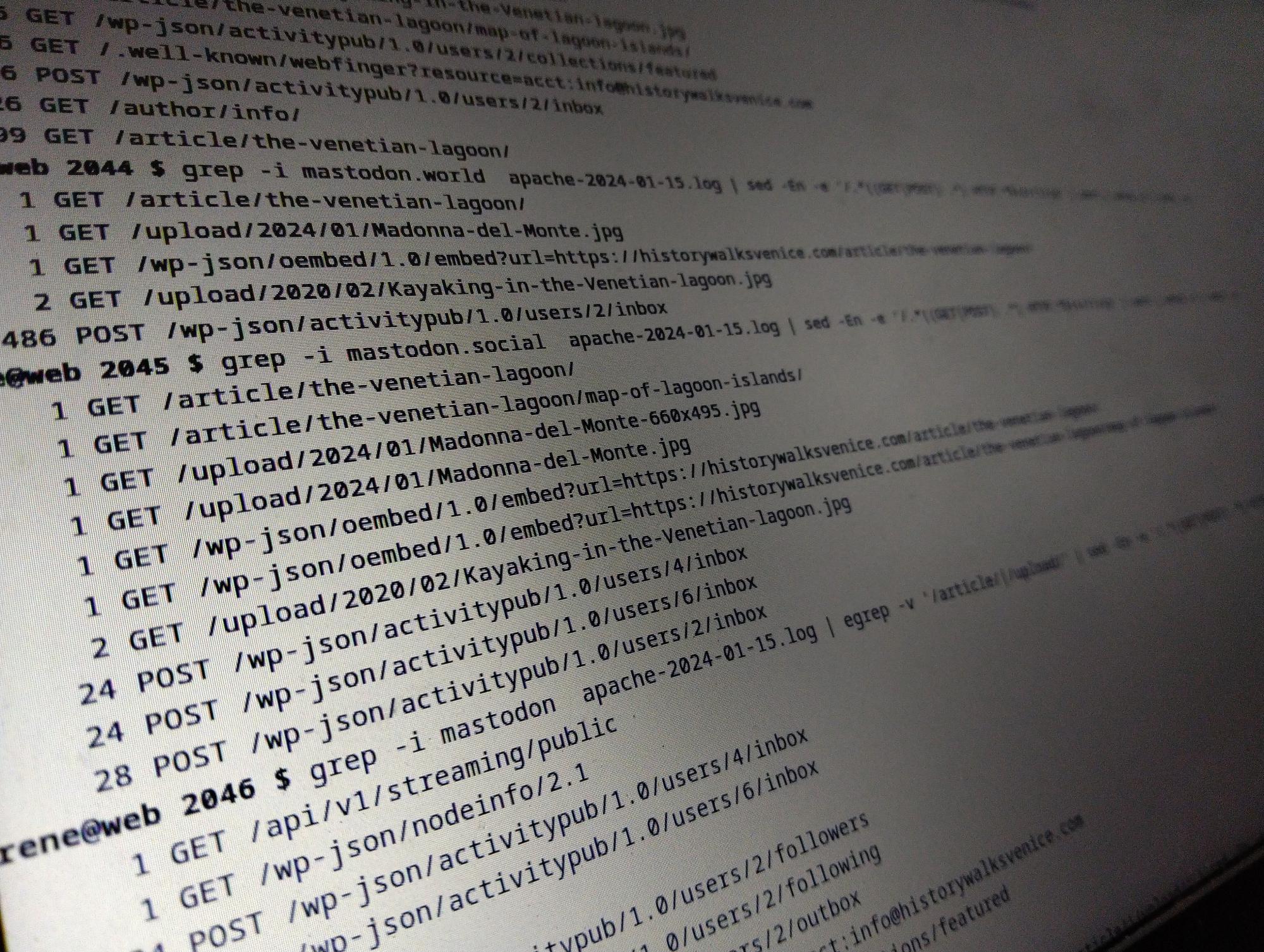
    Here’s a breakdown of what the Mastodon instances requested from my site on the morning of January 15th when the two posts were published.

    I have removed requests for posts and media, which simply means somebody views the posts on Mastodon, which is fine. That what I want.

    These requests are behind the scenes requests.

    HTTP requestCount
    GET /author/info/854
    POST /wp-json/activitypub/1.0/users/2/inbox794
    GET /wp-json/activitypub/1.0/users/2/collections/featured754
    GET /.well-known/webfinger?resource=acct:info@historywalksvenice.com749
    GET /wp-json/activitypub/1.0/users/2/outbox668
    GET /wp-json/activitypub/1.0/users/2/following567
    GET /wp-json/activitypub/1.0/users/2/followers494
    GET /95
    POST /wp-json/activitypub/1.0/users/6/inbox24
    POST /wp-json/activitypub/1.0/users/4/inbox24
    GET /wp-json/nodeinfo/2.11
    GET /api/v1/streaming/public1

    User ‘info’, uid 2, is the one making the posts. The requests for users 4 and 6 were from mastodon.social because I tested the WordPress ActivityPub there, and it remembers.

    Of the requests from mastodon.world, all but 5 was for “POST /wp-json/activitypub/1.0/users/2/inbox“. That is, one of the top ten Mastodon instances made 486 identical requests over three hours, while apparently one or two persons saw the posts there. The instance made one (1) request for a post, 3 requests for media and one oEmbed request.

    Why?

    All this because my website went unresponsive for a few periods, about an hour or two after the posts were published.

    Obviously, I want my sites responsive, and especially when I’ve just published posts.

    Server and software

    The server runs Debian stable, with up-to-date vanilla Apache and MariaDB. It is a VPS with 2vCPUs, 4Gb of ram with 2Gb of swap for emergencies. It is not large, but neither is it the smallest you can get. Apache is configured to allow up to 100 worker processes.

    The site is WordPress with the ActivityPub plugin active. Both are up-to-date. There’s a page cache, and a redis backed object cache active.

    There are some other sites on the server, but they are very low traffic, and don’t use ActivityPub.

    Unresponsiveness

    The first thing I noticed was that the problem was not the server as such. I had no problem logging in while the site didn’t respond. There are no OOM messages in the system logs.

    It wasn’t a network problem, as I can hardly use one percent of the bandwidth the server has. The hosting provider’s statistics show no spikes in traffic volume.

    The server as such was not unresponsive, the websites it served were.

    The problem was Apache, but there’s no easy solution.

    I’ve checked the response times of the requests made by the Mastodon instances, and there’s nothing obviously slow.

    My current suspicion is that the many requests causes Apache to run out of request workers. Numerous requests in a very short time uses up the available worker processes, and if the Mastodon instances keep the connection alive for subsequent requests (I don’t know if they do), they are not relinquished immediately for other requests from other clients.

    I have set the limit of worker processes (with the MPM prefork) to 100, which will be the maximum number of concurrent requests.

    There’s nothing in the error_log, though. I would have expected to find a message there, if Apache runs out of worker processes.

    Conclusion

    I haven’t solved my problem, and I’d be happy for any suggestions about how to proceed.

    What I have found out, is that if you use the ActivityPub plugin with a larger following or, as in this case, by mentioning a large group which boosts your post immediately, hordes of Mastodon instances will come down hard on your cosy little server, and not all are well-behaved.

    Just in this case, I’ve seen at least two instances with a less than optimal behaviour.

    Footnotes

    1. The ranking is from instances.social. ↩︎
  • WordPress Full Site Editing

    WordPress Full Site Editing

    In the past I’ve been happily fiddling with WordPress themes and plugins manually, but with the new full site Editing system that doesn’t really work any more.

    That’s not bad because you can probably get more effect with less effort using the new system.

    I’m not a designer, so I’ve usually worked with child themes.

    Somehow, an edited theme with the full site editor seems a bit like an old-style child theme. The modifications you make are in the database, and when the parent theme is updated, your changes remain. That was one of the important features of child themes, and that is also how the new system works.

    In that sense there’s little need for child themes.

    What if you want to use your modified theme on several sites?

    Reusing modified themes

    The full site editor has an “Export” option which will create a ZIP file that can be installed somewhere else.

    Nice!

    However, it contains the entire theme with the modifications from the full site editor applied, but with the original name. That means that next time the original theme is updated, the local changes disappear.

    Less nice!

    The “Create Block Theme” plugin

    The nice people at wordpress.org have made a plugin to help with these issues.

    It does several things, and it can also either clone an existing theme, including giving it a new name, or create a child theme of the active theme.

    Cloning themes

    A clone theme is a copy with another name, so an update to the original theme doesn’t overwrite your changes. It is an independent complete theme, and you don’t need to have the original theme installed on the production site.

    Being an independent, complete copy, however, also means that updates to the original theme won’t be applied to the copy.

    This might be fine, or it might not be, depending on what you want.

    Child themes

    A child theme only contains the changes from the parent theme, which must therefore be installed on the site.

    Updates to the unmodified parts of the parent theme will be applied to the child theme automatically, just like with the pre full-site editing child themes.

    First time I did this, the site didn’t work properly. The parent theme had a sidebar for desktop and a top bar for mobile, and both were shown all the time. There was not switch between the two presentations when the browser window changed size, as there should be.

    The problem was that the parent theme’s style sheet wasn’t loaded.

    This might be a bug in the “Create Block Theme” plugin.

    The way around the problem is to export the child theme using the “Create Block Theme” plugin (not the export function in the full-site editor), and add a functions.php file to the ZIP file, containing these lines:

    <?php
    
    add_action( 'wp_enqueue_scripts', function () {
        $parenthandle = 'parent-style';
        $theme        = wp_get_theme();
        wp_enqueue_style( $parenthandle,
    	get_template_directory_uri() . '/style.css',
    	array(),
    	$theme->parent()->get( 'Version' )
        );
    } );
    

    Install the updated ZIP file on the development site. Now the child theme will load both the style.css from the child and from the parent themes.

    Updating the version number

    The themes created with the “Create Block Theme” plugin all have version 0.0.1.

    If you want another version number, you have to change the ZIP file before it is uploaded to the production site.

    Open the ZIP file, and edit the version number in the file style.css.

    I’ve opted for a version number made up of the date and time, as YYYYMMDD.HHMM.

  • WordPress image sizes

    WordPress image sizes

    Figuring out proper values for WordPress image sizes takes a bit of effort, but it’s not rocket science.

    Whenever you upload an image to a WordPress site, the software generates several scaled copies of the image. Some are built-in to WordPress, some are defined by the theme used, or by plug-ins, while others can be configured on a per-site basis.

    Built-in images sizes

    No matter what you configure in the settings, WordPress will generate smaller images that are 768px (the medium-large size), 1536px and 2048px on the longest side.

    WordPress doesn’t scaled up images.

    If the uploaded image is more than 2560px on the longest side, WordPress will generate a version scaled to 2560px and use that as if that’s the uploaded full size image. WordPress adds the text “-scaled” to the file name.

    Other images sizes

    Site theme and active plug-ins can add other image sizes.

    The easiest way to find out which is to search for add_image_size in the source files of the theme or plug-in.

    Most themes will define at least one addition image size for a full-screen image, like for a featured image at the top of a page, to match the theme design.

    For example the Twenty Twenty theme adds the size 1980x9999px, which means 1980px wide, and height adjusted to fit.

    Default configured sizes

    Three images sizes are defined in the Media section of the site settings. They are for thumbnails, medium and large sizes.

    WordPress defaults to a thumbnail size of 300x300px cropped square, medium size 600px wide scaled proportionally, and large size at 1024px scaled.

    If you want fewer resized files on you site, you can set thumbnail to either 256x256px or 384x384px (⅓ or ½ of the standard medium-large size), the medium 768px and large to 1536px, replicating the sizes WordPress would make anyway.

    The result will be few files, less disk usage on your hosting, but more bandwidth spent sending larger files.

    Calculating ‘good’ sizes

    The default sizes are not wrong, but it makes sense to change the sizes to match the theme’s idea of a large image and your preferred aspect ratio of images.

    Images scale better if you use integer factors.

    I tend to use an aspect ratio of 4:3 on general sites, but 3:2 on photography oriented sites, and the results can be slightly different.

    I also upload photos to my sites at the ‘right’ size for the theme. If a site uses Twenty Twenty I will prepare the photos to be 1980px wide, as that is what the theme requires.

    If the desired aspect ratio is 4:3 the images will be 1980x1485px (landscape) or 1980x2640px (portrait).

    Factor these numbers into prime factors:

    1980 = 2 x 2 x 3 x 3 x 5 x 11
    1485 = 3 x 3 x 3 x 5 x 11
    2640 = 2 x 2 x 2 x 2 x 3 x 5 x 11

    The three numbers share the factors 3 x 5 x 11 = 165.

    Based on this I will set thumbnail to 330x330px (downscaling the width by a factor 6 and the height by 4.5 or 8), the medium size to 660x9999px (downscaling by a factor 3) and the large to 1280×9999 (downscale 1.5).

    If some sizes comes out very close to the WordPress built-in sizes, choose the same as WordPress.

    Aspect ratio 3:2

    If the desired aspect ratio is 3:2 the images will be 1980x1320px (landscape) or 1980x2970px (portrait).

    Factor these numbers into prime factors:

    1980 = 2 x 2 x 3 x 3 x 5 x 11
    1320 = 2 x 2 x 2 x 3 x 5 x 11
    2970 = 2 x 3 x 3 x 3 x 5 x 11

    The three numbers share the factors 2 x 3 x 5 x 11 = 330.

  • WordPress without a web server

    WordPress without a web server

    In the almost two months we’ve spent in Coronavirus lockdown here in Venice, I’ve had the opportunity to get some of the old forgotten tasks done. During one of these I finally got around working with WordPress from the command line, and directly from PHP without running a web server.

    It is amazingly simple. My server is running Debian, and this code is all that’s needed to run WordPress from the command line:

    // The site you want to access using Debian's multisite
    $_SERVER['HTTP_HOST'] = 'wpsights.seindal.dk';
    
    // Location of WP installation on Debian
    define('ABSPATH', '/usr/share/wordpress/');
    
    // Load the beast
    define('WP_USE_THEMES', false);
    require_once(ABSPATH . 'wp-load.php');

    After this WordPress is loaded for the site given by HTTP_HOST and you can do anything you want with the WordPress API.

    Reading a JSON file and inserting 1200 pages in a hierarchy becomes just a few dozens lines of code.

    The background

    The task at hand was migrating a very old site to something more recent. The site in question, sights.seindal.dk, was made almost twenty years ago, and had been abandoned for at least fifteen years. Yet, back then I’ve put in a lot of effort, and the site did have some decent traffic still.

    The old site was programmed in Perl using the Mason framework, with a mysql backend. The new site would be WordPress because it’s ubiquitous and fairly easy to work with, and I have a bunch of other sites on WP.

    There were some 1200 pages on the site, and about 10,000 photos, all meticulously tagged and cross-indexed. Many articles are quite substantial. Everything was cross-linked automatically on the site. I wanted all this moved over, and preferably not by hand.

    In the end I modified the old perl code to export the pages and photo metadata as JSON, and wrote various small scripts in PHP to read the JSON and load everything into WordPress as pages, media, tags and categories.

    Given the ease of using WordPress directly from the command line, I could make many small scripts and do the migration a bit at a time.

    Add to that a child theme of a very basic free theme, and a content filter to do the automatic linking, and the task was done.

    It took about a week to get all the data over, and another week to do the child theme and automatic linking.

  • WordPress update failed to complete

    WordPress update failed to complete

    I have a bunch of sites running on a Debian multi-site setup. Managing it is normally simple.

    However, one day I activated automatic WordPress updates. Big mistake.

    The next minor WordPress update failed miserably, due to lack of permissions, and all the sites carried the message:

    An automated WordPress update has failed to complete - please attempt the update again now.

    There was no way of getting rid of the message.

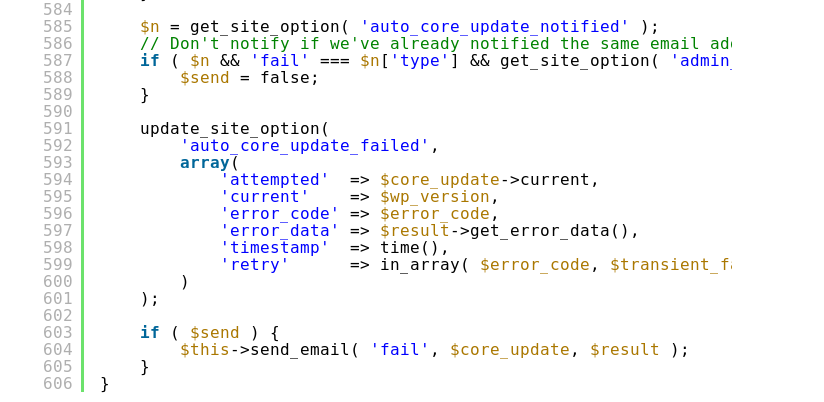
    In the end, after much digging, I discovered that WP had set an option “auto_core_update_failed” on the sites. Removing that the message disappeared.

    The issue is here on the WordPress Developer site.

    The WordPress CLI command is your friend for these things.

  • WordPress Hamilton Theme add-on

    WordPress Hamilton Theme add-on

    I’ve got several site running on the brilliant minimalistic Hamilton theme for WordPress. It is a free theme created by Anders Norén.

    The only thing I found missing was to be able to display posts and pages easily in the same way they appear on the blog posts page.

    After bit of experimenting, I came up with code for a WordPress shortcode that’ll do the trick. There’s a download link below.

    With this shortcode you can do things like:

    display_posts type="page" category="front-page" orderby="manual" order="ASC" class="alignwide"

    or:

    display_posts type="post" orderby="date" order="DESC" limit="3" class="alignwide three-columns-grid"

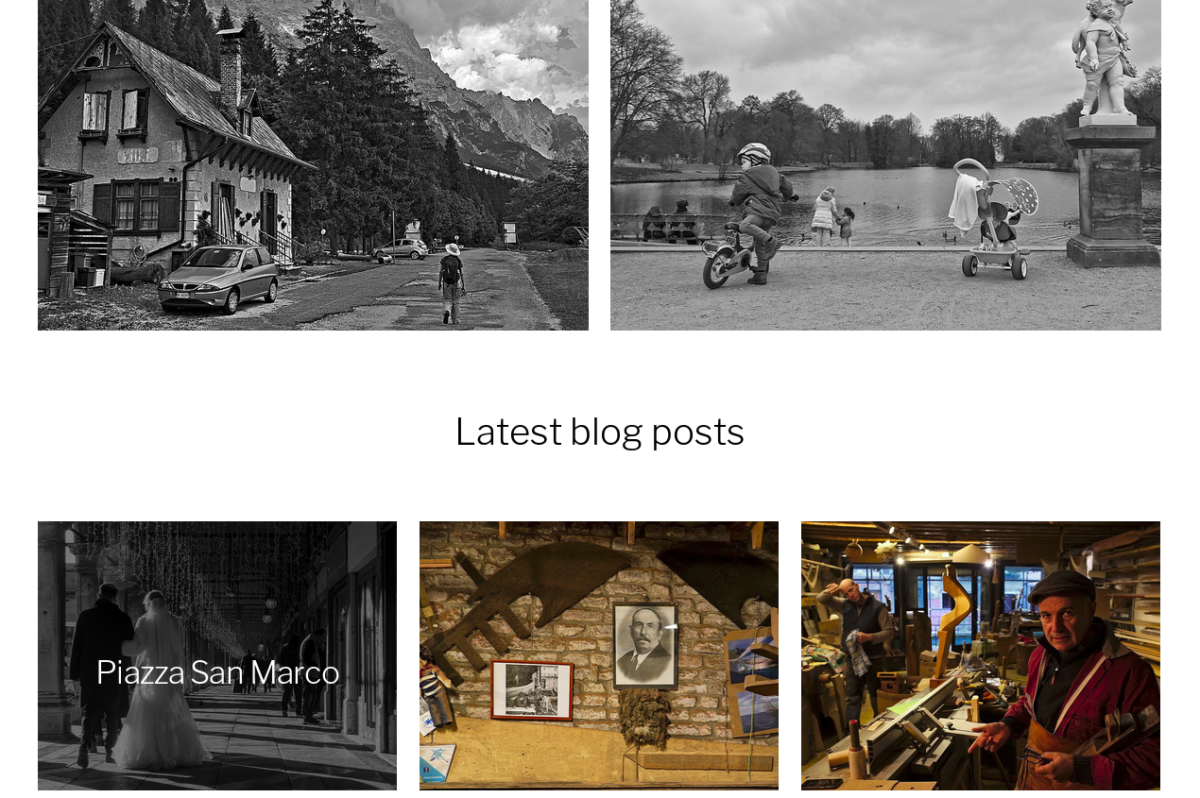
    Both examples are used on the front page of my Venice Street Photography site.

    On another site Sei Sola?, the plugin is also used, like here to show posts by a specific author:

    display_posts author="martina" class="alignwide"

    The possible arguments are:

    • author=”author-slug“
    • category=”category-slug“
    • tag=”tag-slug“
    • parent=”page-id“
    • type=”post” or type=”page”
    • limit=”NN” (number of posts/pages to retrieve)
    • order=”ASC” or order=”DESC”
    • orderby=”date|menu|title|id”
    • class=”additional classes“

    The code is kept simple on purpose, because I made this just for myself and I don’t need more than what it currently does.

    The file below can be used as a WordPress plugin. Create a folder “hamilton-display-posts” in your WordPress plugin folder, and copy the code below into a file “hamilton-display-posts.php” in that folder. Then you’ll find it the plugin list where it can be activated.

    The code

    <?php /**
     * Plugin Name: Hamilton display_posts
     * Plugin URI: https://www.venicestreetphotography.com/
     * Description: A display_posts shortcode for theme Hamilton
     * Version: 1.0
     * Author: René Seindal
     * Author URI: https://rene.seindal.dk/
     * License: GNU General Public License version 2.0
     * License URI: http://www.gnu.org/licenses/gpl-2.0.html
     */
    
    // Lists of posts
    
    function hamilton_display_posts_shortcode($atts = [], $content = null, $tag = '') {
        // normalize attribute keys, lowercase
        $atts = array_change_key_case((array)$atts, CASE_LOWER);
     
        // override default attributes with user attributes
        $atts = shortcode_atts([
            'author' => NULL,
            'category' => NULL,
            'tag' => NULL,
            'parent' => NULL,
            'type' => 'post',
            'limit' => 12,
            'order' => 'DESC',
            'orderby' => 'date',
            'class' => NULL,
        ], $atts, $tag);
    
        if ($atts['orderby'] == 'menu' or $atts['orderby'] == 'manual') { $atts['orderby'] = 'menu_order'; }
    
        $query_args = array(
            'post_status' 		=> 'publish',
            'post_type'			=> $atts['type'],
            'orderby' 			=> $atts['orderby'],
            'order'				=> $atts['order'],
            'posts_per_page' 	=> $atts['limit'],
        );
    
        if (!empty($atts['author'])) {
            $query_args['author_name'] = $atts['author'];
        }
        if (!empty($atts['category'])) {
            $query_args['category_name'] = $atts['category'];
        }
        if (!empty($atts['tag'])) {
            $query_args['tag'] = $atts['tag'];
        }
        if (!empty($atts['parent'])) {
            $query_args['post_parent'] = $atts['parent'];
        }
    
        ob_start();
        $posts = get_posts( $query_args );
        if ( $posts ) {
            global $post;
            foreach( $posts as $post ) {
                setup_postdata( $post );
                get_template_part( 'content' );
            }
            wp_reset_postdata();
        }
        $output = ob_get_clean();
        
        $class = '';
        if (!empty($atts['class'])) {
            $class = ' ' . esc_attr($atts['class']);
        }
    
        return '<div class="posts' . $class . '" id="posts">' . $output . '</div><!-- .posts -->';
    }
    
    add_action('init', function () {
        add_shortcode('display_posts', 'hamilton_display_posts_shortcode');
    });
    
  • Comment spam

    Comment spam

    I just went through the comment moderation queue on this blog, and there were four (4) valid comments out of 385 comments. Spam is such a pain that I can’t even imagine how it would be without comment moderation activated.

  • Blog moved to WordPress

    Blog moved to WordPress

    I finally got my act together at moved this blog to WordPress. There’s still a few lose ends, some uploaded pictures are missing and will have to be added by hand, and the top graphic needs replacing.

    It’ll probably make a mess of those places using the feeds from here. Sorry about that.