Tag: Linux

  • Atlantis KD3116 keyboard

    Atlantis KD3116 keyboard

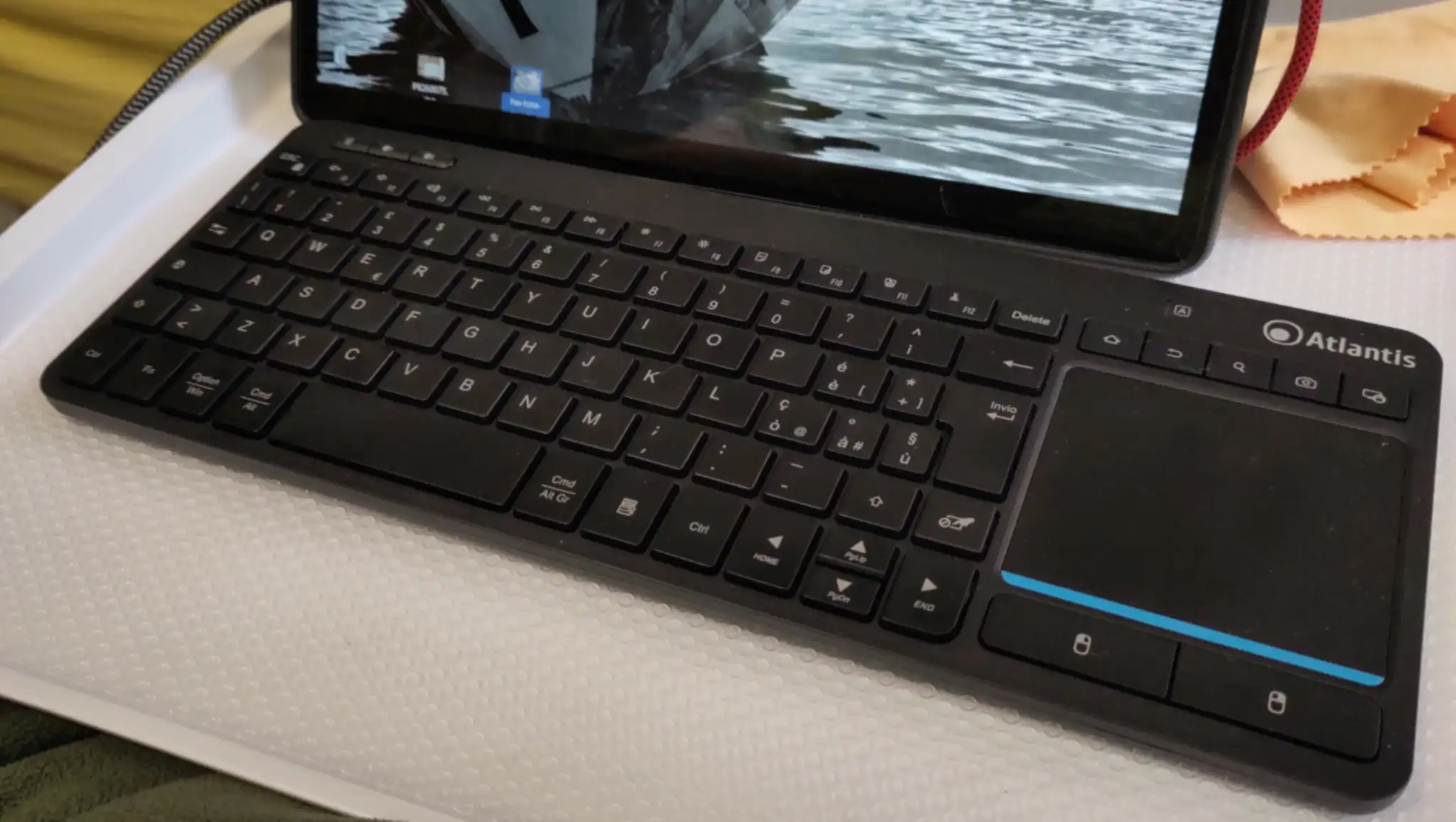
    Looking for a compact keyboard with an integrated touchpad, I found the Atlantis KD3616 keyboard.

    It is an Italian brand, and I’m not sure if this keyboard is available outside Italy.

    What sold it to me, was the promise of three finger gestures on the touchpad, which I use a lot in Gnome, to switch between desktops and open and close the overview.

    It does, kind of, but it also doesn’t.

    (more…)
  • Moving Darktable files

    Moving Darktable files

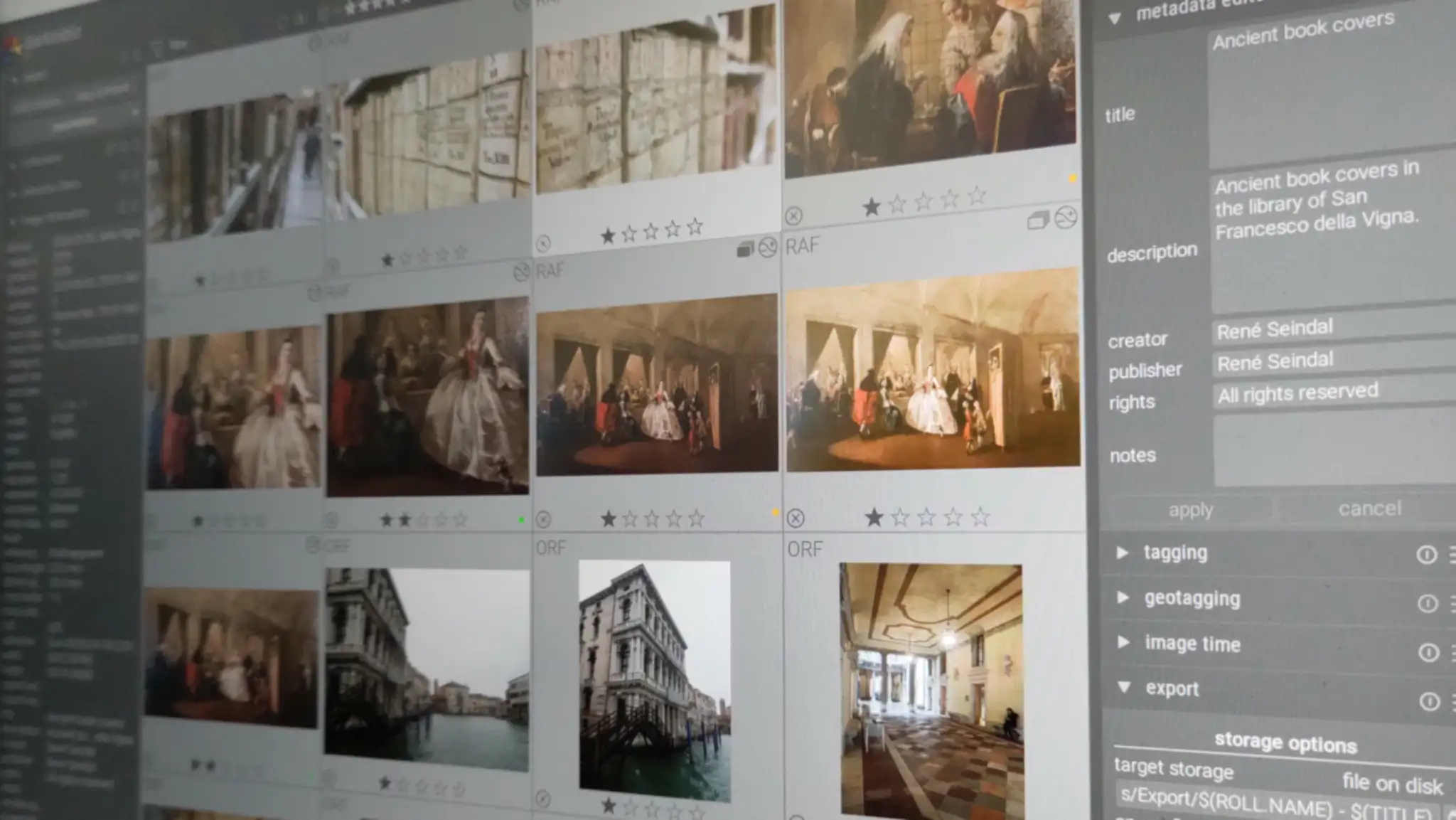
    Moving Darktable’s from one place to another was surprisingly easy.

    1. Copy all the files to the new location.
    2. Edit darktablerc, changing all occurrences of the old path with the new.
    3. Delete library.db
    4. Open darktable (I use –configdir and –cachedir for various instances)
    5. Import all the photos from the archive, without copying the files.
    6. Enjoy!

    The file library.db contains all the photos, but the same data is in the sidecar files, which are read during import.

    Styles, presets and all the other things, are in either data.db or darktablerc.

    The file data.db might contain some paths, such as defaults for various widgets.

  • StarLabs StarBook Horizon

    StarLabs StarBook Horizon

    As computer prices are skyrocketing due to the as-of-now not yet burst AI bubble, I decided to get a newer and more capacious computer, as most of what I have is old, as in last decade. I might not be able to afford one next year.

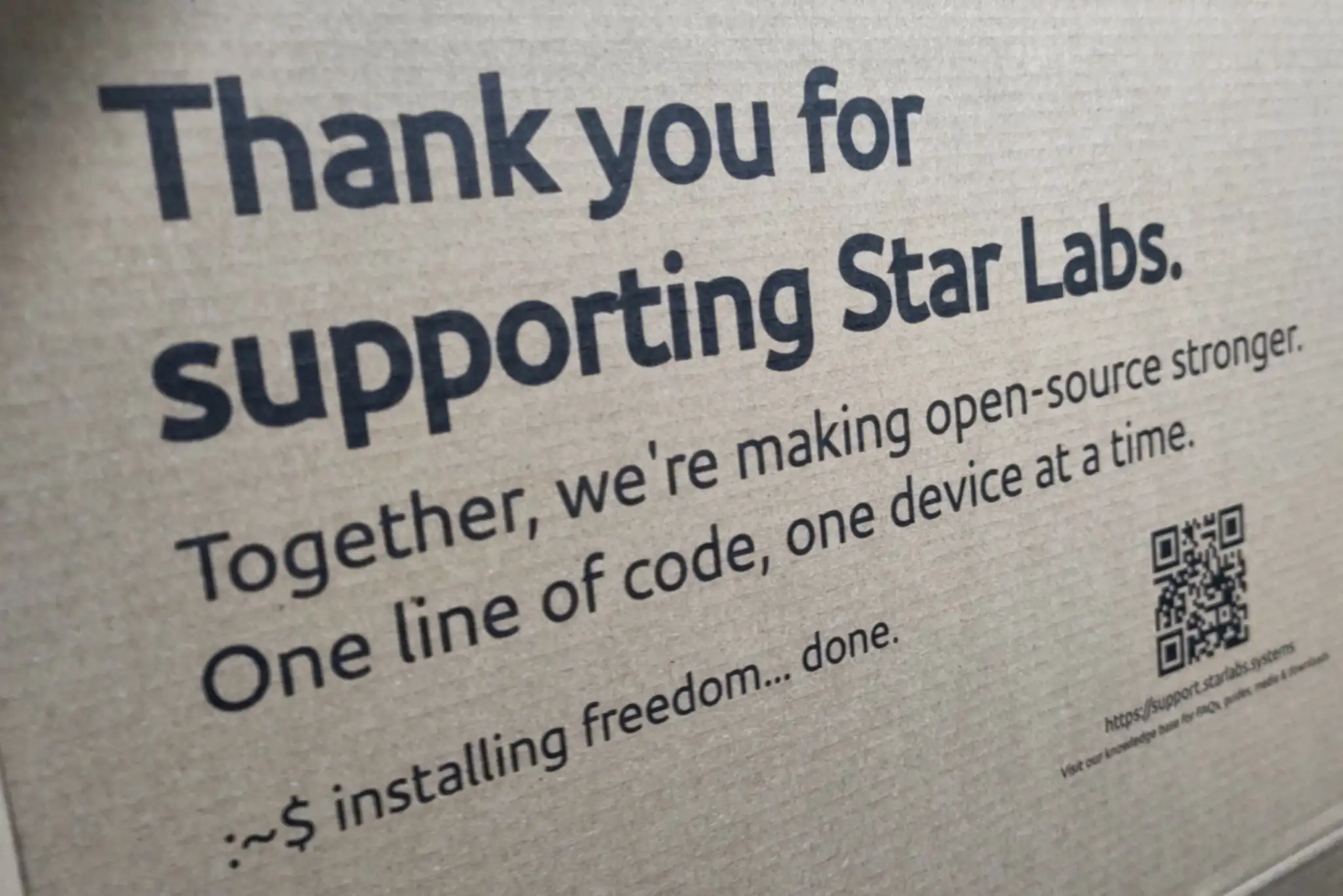
    As I’ve been delighted with the StarLite mkV, and especially with the support from the StarLabs team, I pre-ordered a StarBook Horizon, which arrived yesterday.

    After twenty-five years with Debian, which StarLabs doesn’t offer pre-installed, I did the installation myself as soon as it arrived.

    (more…)
    Fediverse Reactions
  • External disk with ext4 doesn’t auto-mount

    I have an external SSD in a NVME USB enclosure, with an EXT4 file-system. When I plug it in, it doesn’t auto-mount, and haven’t done so for a while.

    Most other external disks do auto-mount.

    I finally figured out why, and how to fix it.

    (more…)
    Fediverse Reactions
  • A tablet with Linux

    A tablet with Linux

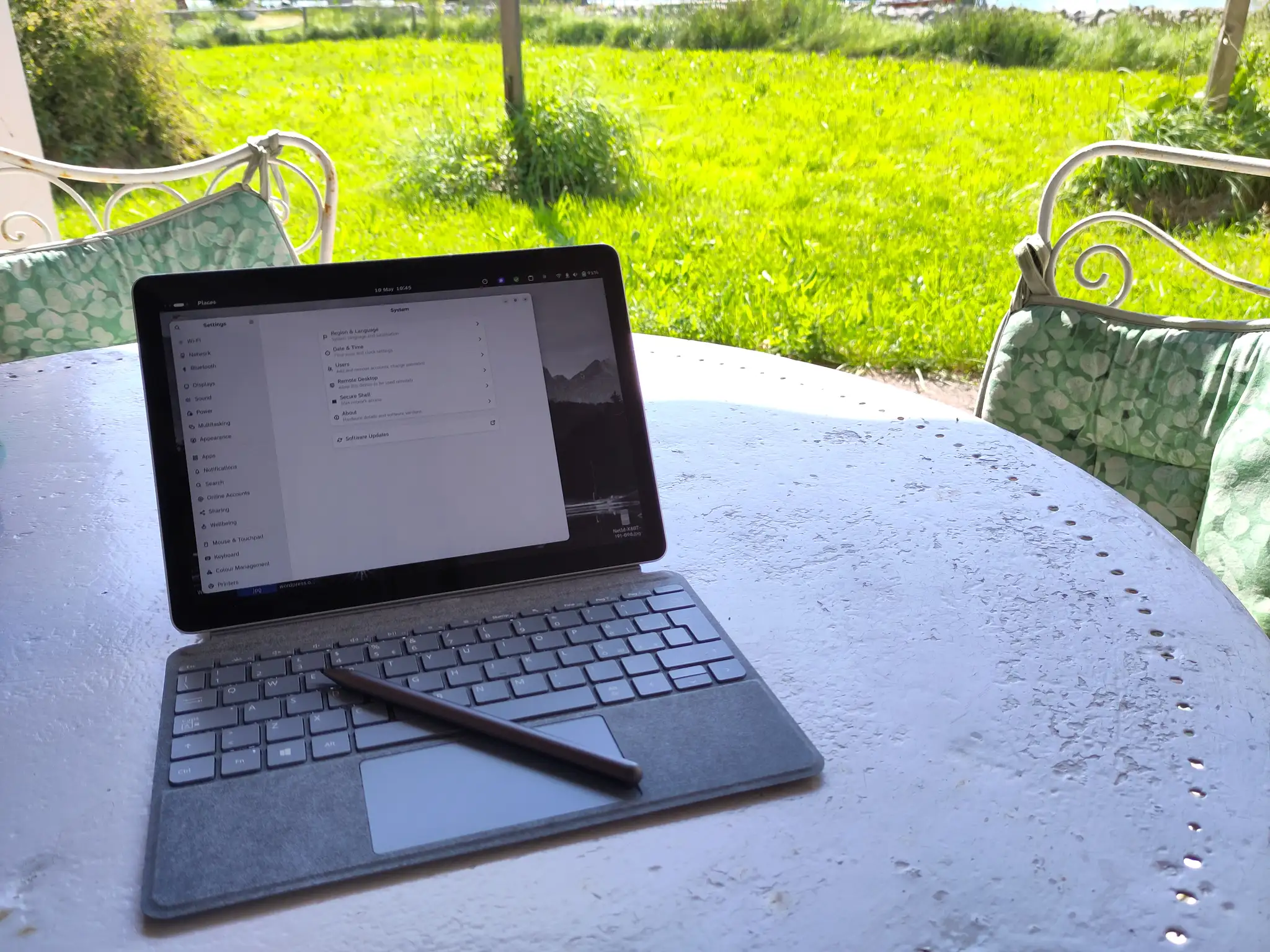
    Something highly unusual has happened to me in the last few days.

    I have bought some Microsoft branded hardware, and I am actually delighted about it.

    As a die-hard Unix and Linux user for some forty years, that’s something.

    (more…)
  • StarLite tablet and Debian Testing

    StarLite tablet and Debian Testing

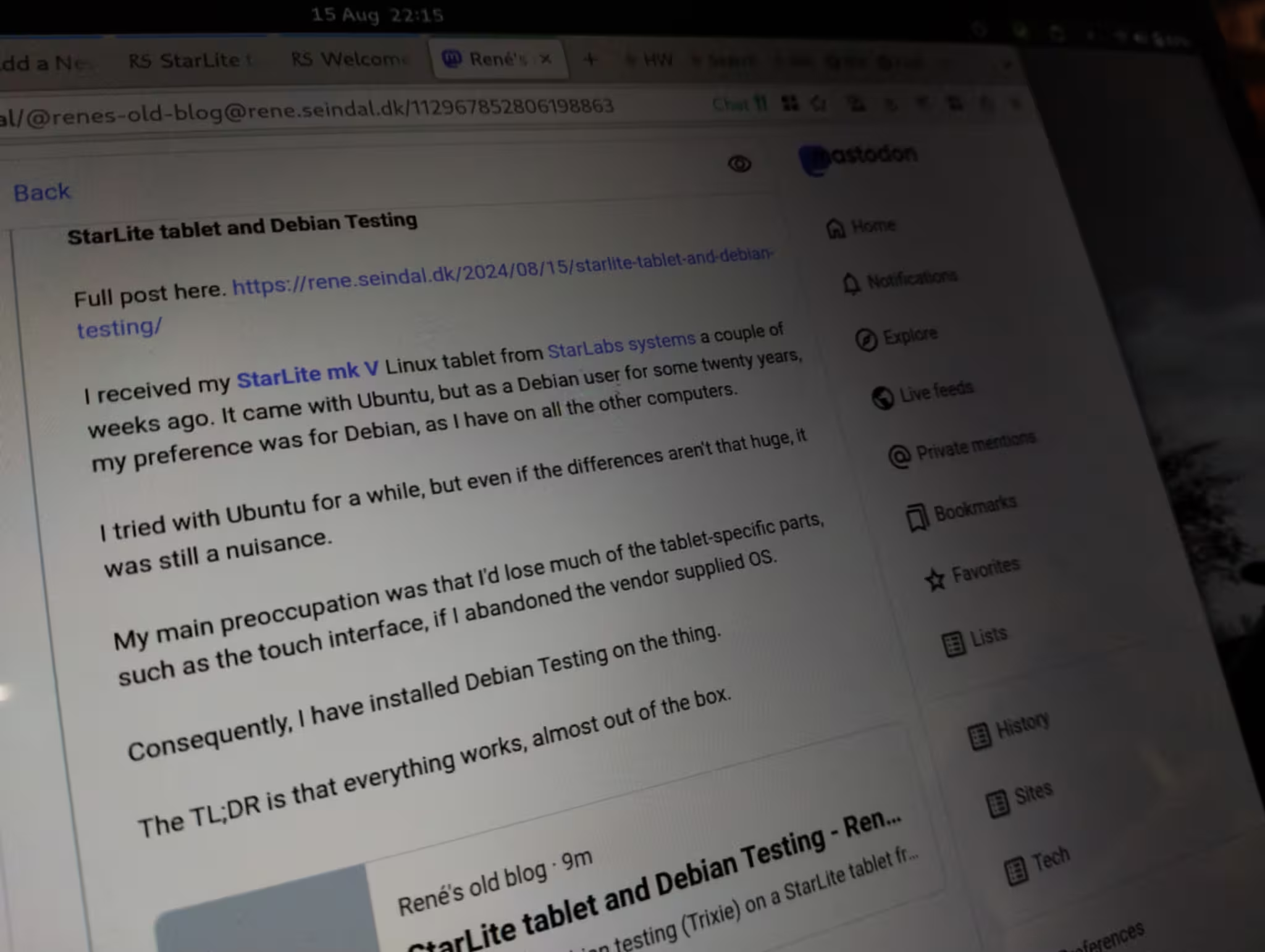
    I received my StarLite mk V Linux tablet from StarLabs systems a couple of weeks ago. It came with Ubuntu, but as a Debian user for some twenty years, my preference was for Debian, as I have on all the other computers.

    I tried with Ubuntu for a while, but even if the differences aren’t that huge, it was still a nuisance.

    My main preoccupation was that I’d lose much of the tablet-specific parts, such as the touch interface, if I abandoned the vendor supplied OS.

    Consequently, I have installed Debian Testing on the thing.

    The TL;DR is that everything works, almost out of the box.

    Installation

    My main reference for the installation was Setup Debian 12 on the Starlabs Starlite mk V by Alexandre Martin. There were several apparently important tidbits in that post.

    I had bought a Debian rescue USB key with the tablet, which is a bootable live Debian system with the bookworm netinst installer.

    The normal installation procedure went without a hitch. The installer found the Wi-Fi adapter, listed SSIDs and allowed me to enter the passphrase.

    The grub bootloader installed by Debian overwrote the fancy branded bootloader from StarLabs Systems, but with Plymouth, I have a nice rocket hurling through space during boot 🙂

    Once the basic installation of stable was done, I changed ‘sources.list’ to testing, and updated again.

    Several reboots later, I installed all the software I need, which includes the GNOME desktop.

    Everything appears to work.

    Touch interface

    It is the first time I have a Linux computer with a touch interface, so I was a bit worried that it would cause me grief.

    It didn’t.

    With GNOME under Wayland, the touch screen just worked. I did nothing.

    Touching to move the cursor, clicking, scrolling by dragging, even multitouch gestures, like using three fingers sideways to change the desktop.

    GNOME has a simple on-screen keyboard, which does its job. It is not fancy like on Android, but it works and it appears when needed.

    Alexandre, in his blog post, had to do something to get automatic screen rotation to work, but with Debian testing, it just worked.

    Other hardware

    All the usual bits, sound, Wi-Fi adapter, Bluetooth, worked out of the box.

    For accelerated graphics with OpenCL, I had to install the OpenCL driver for the integrated Intel GPU.

    StarLabs Systems also sells a pen, which works flawlessly.

    Firmware updates

    The StarLite uses coreboot for BIOS, which on Ubuntu appeared updatable through fwupd, but it doesn’t seem to be on Debian.

    External display

    While on Ubuntu, I attached the tablet to a larger monitor, in a dual monitor setup.

    Using a USB-C to DisplayPort cable works just fine, with a 4K display.

    Mozilla Firefox

    To get touch scrolling and pinch to zoom to work in Mozilla Firefox, two environment variables are needed:

    MOZ_ENABLE_WAYLAND=1
    MOZ_USE_XINPUT2=1

    You can set them wherever is best for you, as long as they’re set before you start Firefox.

    Conclusion

    This was way easier than I had anticipated.

    And, the StarLite tablet is absolutely magnificent. It has a 3K touch screen, a very nice detachable keyboard with a touchpad, two USB-C ports which both and charge or attach an external display. There’s also a micro-SD card slot, headphone plug and a micro-HDMI port which I haven’t tried yet.

    The only auxiliaries I had to get, to make this work, was a USB-C to DisplayPort cable, and a cheap USB-C hub with power delivery, so I can attach USB-A cables and have an SD card reader.

    This one single piece of computer can be a tablet, a small laptop and a nice desktop computer, all in one, and, most importantly, running the same OS and software that I have everywhere else. No more fighting with Android to do basic tasks on a tablet.

    It’s not a foreign place like Android or (for me, surprisingly) Ubuntu. It’s like home, and it’ll do everything I need.

  • synogear install

    This is running on a Synology DMS home NAS. Having been running Unix and Linux for forty years, I’m rather used to overseeing my own systems. Not so much with the NAS.

    Today I discovered that if you run the command synogear install as root, it’ll install a hidden package full of diagnostics commands.

    I found it because I needed iotop.

    My next NAS will be home-spun with a standard Debian based system, so I can do what I want without jumping through useless burning hoops.

  • WordPress without a web server

    WordPress without a web server

    In the almost two months we’ve spent in Coronavirus lockdown here in Venice, I’ve had the opportunity to get some of the old forgotten tasks done. During one of these I finally got around working with WordPress from the command line, and directly from PHP without running a web server.

    It is amazingly simple. My server is running Debian, and this code is all that’s needed to run WordPress from the command line:

    // The site you want to access using Debian's multisite
    $_SERVER['HTTP_HOST'] = 'wpsights.seindal.dk';
    
    // Location of WP installation on Debian
    define('ABSPATH', '/usr/share/wordpress/');
    
    // Load the beast
    define('WP_USE_THEMES', false);
    require_once(ABSPATH . 'wp-load.php');

    After this WordPress is loaded for the site given by HTTP_HOST and you can do anything you want with the WordPress API.

    Reading a JSON file and inserting 1200 pages in a hierarchy becomes just a few dozens lines of code.

    The background

    The task at hand was migrating a very old site to something more recent. The site in question, sights.seindal.dk, was made almost twenty years ago, and had been abandoned for at least fifteen years. Yet, back then I’ve put in a lot of effort, and the site did have some decent traffic still.

    The old site was programmed in Perl using the Mason framework, with a mysql backend. The new site would be WordPress because it’s ubiquitous and fairly easy to work with, and I have a bunch of other sites on WP.

    There were some 1200 pages on the site, and about 10,000 photos, all meticulously tagged and cross-indexed. Many articles are quite substantial. Everything was cross-linked automatically on the site. I wanted all this moved over, and preferably not by hand.

    In the end I modified the old perl code to export the pages and photo metadata as JSON, and wrote various small scripts in PHP to read the JSON and load everything into WordPress as pages, media, tags and categories.

    Given the ease of using WordPress directly from the command line, I could make many small scripts and do the migration a bit at a time.

    Add to that a child theme of a very basic free theme, and a content filter to do the automatic linking, and the task was done.

    It took about a week to get all the data over, and another week to do the child theme and automatic linking.

  • Asus Eee Pc 1000H with Debian Lenny (testing)

    Asus Eee Pc 1000H with Debian Lenny (testing)

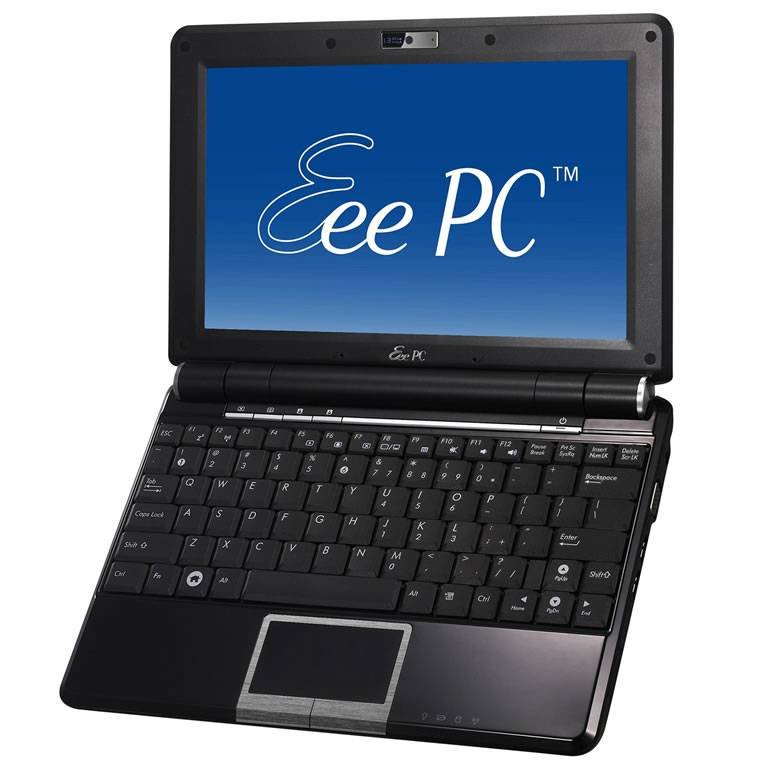
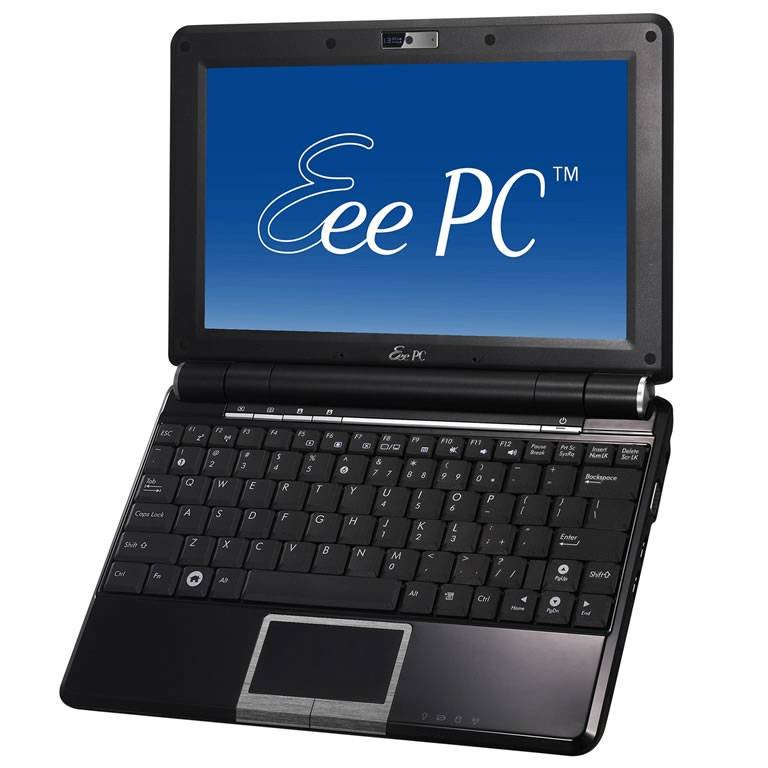
    I have bought an Asus EeePc 1000H which is one of the new popular netbook – a very small and light weight notebook. I chose the Asus EeePc 1000H for several reasons:
    • I travel a lot, often by motorcycle and kayak, and need something compact and lightweight for mail, internet, blog updates and social networks;
    • initially I wanted the EeePc 901, but its being discontinued and it costs almost the same as the 1000H, which has a hard disk and a larger keyboard;
    • though delivered with Windows XP, the hardware is quite Linux friendly and almost identical with the 901 which were sold with Linux;
    • its small and cute (even my wife says so).
    The specs are:
    • Intel Atom N270 dual core CPU,
    • Intel Mobile 945GME chipset,
    • 1 Gb DDR2 667MHz RAM upgradable to 2Gb,
    • 160 Gb SATA harddisk,
    • Six-cell LiOn battery 6580 mAh,
    • 10″ WVGA display at 1024×600,
    • ElanTech touchpad,
    • RaLing RT2860 wireless network adapter – IEEE 802.11bgn,
    • Attansic Technology L1 Gigabit network adapter,
    • Broadcom BT-253 internal USB bluetooth adapter,
    • Alcor Micro SD/MMC Card Reader,
    • Genesys Logic USB 2.0 webcam 1.3Mpixel.
    It is a fairly small laptop, measuring 27×19×3cm and weighing 1.45kg which is a bit more that I had hoped (the 901 is less than 1kg) but it is OK, as I won’t have to bring an extra USB disk for additional storage.

    Conclusions

    I have installed Debian testing/lenny on it, through the Debian Eee Pc projects installer. It is a specialised installer which does a slightly different installation and configuration, but the resulting system is a normal Debian system. Most parts of the netbook work immediately with little or no manual configuration after a base install, but there are a few parts that doesn’t or that are a bit unstable. Most of these seem to have a solution on the way. An install through the Debian Eee Pc installer of Debian Testing (lenny) with a Linux 2.6.26 kernel leaves these parts non-functional:
    • Front microphone doesn’t work (should be fixed in the latest ALSA release, included ibn Linux 2.6.27);
    and these only partly functional:
    • Wireless network driver only works with certain setups (for me, open network and WPA/PSK work, WEP doesn’t);
    • Touchpad is working with a generic driver which doesn’t support all the functions of the hardware;
    and these require an extra effort to get fully functional:
    • Keyboard hotkeys (editing a configuration file)

    Installation

    The installation procedure was more or less as specified on the Debian Eee Pc Wiki. The computer came with Windows XP preinstalled and with the disk partitioned in a particular way. Since I’ve paid for that Windows installation, I’d like to retain it in case I should need it later. The harddisk was initially partitioned like this:
    1. Windows XP system 75 Gb (type 7 – HPFS/NTFS)
    2. User data 60 Gb (type 7 – HPFS/NTFS)
    3. Windows accelerated boot 8Gb (type 0x1c – Hidden W95 FAT32)
    4. EFI partition for the BIOS “Boot Booster” 40Mb (type 0xef)
    The partitions 1 and 4 would be needed for Windows XP and the BIOS, and I wasn’t sure what partition 3 was for, so I decided to leave it untouched. I think it is for an accelerated boot of Windows XP where they make a hibernation type snapshot at boot time which can then be used at subsequent boots to speed up things. For Linux I would need a root, a swap and a user data partition, so I decided on this partitioning scheme:
    1. Windows XP system 10 Gb (type 7 – HPFS/NTFS)
    2. Extended partition 125Gb (type 5 – Extended)
      1. Linux root 8Gb (type 83 – Linux)
      2. Linux swap 1Gb (type 82 – Linux swap)
      3. Linux home 116Gb (type 83 – Linux)
    3. Windows accelerated boot 8Gb (type 0x1c – Hidden W95 FAT32)
    4. EFI partition for the BIOS “Boot Booster” 40Mb (type 0xef)
    Starting the Debian Eee PC installer was quite easy. I downloaded the image, copied it to an SD card, inserted it into the card reader and booted while pressing ESC so the BIOS asked which device to boot. The installer is the normal Debian lenny installer, only with a payload of special modules for the EeePc specific hardware, which for now include both wired and wireless network adapters and ACPI functions. Before starting it is a good idea to disable “Boot Booster” and “Quick Boot” in the BIOS. Otherwise it is quite likely the system will just launch you into Windows XP so fast you have little time to press ESC for the boot device menu or F2 to enter the BIOS. I had to start the installer several times to shrink and resize the Windows XP partitions and setup my own partitioning scheme as shown above. The first several boots into the Debian installer was to shrink and resize the Windows XP installation, and setup my partition scheme. I repeatedly took the installer up to the point where it wants you to partition the harddisk, then pressed Alt-F2 to get a shell. The first time I used ntfsresize to shrink the Windows XP NTFS filesystem from 75Gb to 10Gb. Second time was to resize the actual Windows XP partition using fdisk, followed by a boot to Windows XP to make sure the installation was still bootable. Then the third time to setup the Linux partitions, and only afterwards did I let the installer continue and do the actual installation. The Debian installer is so easy these days its almost boring. I only had to answer a few questions, enter some passwords and select what I wanted of software on the computer. I let it install all of the Gnome desktop environment, which was probably a mistake, since I had a bit of work afterwards reducing it to only the parts I actually wanted. I have no use for Windows terminal services or remote desktop systems, or all the CD/DVD ripping and mastering software I had installled automatically.

    Hardware walk-through

    CPU – Intel Atom N270 1.6GHz works out of the box with both cores available and CPU frequency scaling activated. Disk – the SATA disk works as expected. Sound – works except for the front microphone, which is supported in the next version of ALSA, included in Linux 2.6.27. SD card reader – works. USB – works out of the box. Wired network – the Attansic Technology L1 Gigabit network adapter uses an “atl1e” driver which works without any problems noted. Wireless network – works partially with the rt2860sta driver included in the Debian Eee Pc install. It works for me with a WPA/PSK access point, and with an open network, but not without some problems. The driver drops the association at high throughput and subsequently fails to re-associate to the access point without a manual intervention. With a WEP setup it associated with the access point, but failed consistently to get an IP address from the DHCP server. There is no hardware kill switch. Bluetooth – the internal USB adapter works out of the box. There is not hardware kill switch. ACPI – this is governed by a special eeePc driver included in the Debian Eee Pc installer. It seems to support everything: power switch, lid, extra keys, battery, cpu, suspend states etc. Video out – not yet tested Video – Intel Mobile 945GME chipset, which works with X.org. It is automatically configured by the Debian Eee Pc install, so X windows works immediately, compositing included. Touchpad – works partially. It is currently controlled by a generic driver, which doesn’t support all the functions of the hardware. The touchpad works as such, with tapping and the two buttons below it. The middle mouse button can be activated by a two finger tap, and a scroll wheel simulated by a two finger drag. A three finger tap works as a right button click, but it is almost impossible to get right on the small touchpad. Extra keys – works with initialisation – see later “Hotkeys” Suspend – both suspend and hibernate works through the Gnome Power Manager. I have uswsusp installed, but I don’t know if the Gnome Power Manager uses the kernel suspend functions or uswsusp. Sometimes bluetooth disappears after a resume, but I still haven’t figured out why. You need to belong to the “powerdev” group to get full Gnome Power Manager functionality. Webcam – the necessary Video4Linux drivers are automatically installed, and the camera seems to work. I can get mplayer to show me live video from it. Keyboard – while it has nothing to do with Linux, I do have a few grievances about the keyboard. It has at least two deficiencies. While is has a nice and usable size, the right shift key is placed in a very annoying position, to the right of the “up” arrow key, which I alway hit by mistake. Also, the shift lock key has no status indicator anywhere, so you cannot see if shift lock is on or off, except trying to type something.

    X Windows

    Basic X.org configuration was automatic. The X.org server uses the “intel” driver for the Intel 945GME graphics chip set. It is by default set up with EXA acceleration, but the Debian Eee Pc wiki states that using XAA might be better, and my experience confirms it. It feels quite a bit snappier with XAA, especially when scrolling in Firefox. DRI was configured automatically. The touchpad it is an Elantech touchpad but it is not recognised as such by the kernel. It detected as a “ExplorerPS/2”, not as a proper touchpad. The funny thing is, however, that the touchpad still works to some degree. It reacts to movement and taps, there is a scroll wheel area on the right side of it, and a two finger tab becomes a middle click. A three-finger tap becomes a right click but it is very hard to reproduce reliably. There seems to be a driver for the touchpad in the working, but it’s currently only semi-functional. I haven’t delved deeper into this, as it does work. Compiz was only an “aptitude install compiz” away. All the necessary prerequisites were taken care of by the Debian Eee Pc installer.

    Hotkeys

    The keyboard has some special keys, which are handled by a special eeepc ACPI module. I had to edit the /etc/default/eeepc-acpi-scripts file to get the sound volume keys to work properly. I needed to set the variables
    VOLUME_LABEL='Master'
    HEADPHONE_LABEL='Headphones'
    Apparently the default setup is for the latest Alsa release, but not the one used by the 2.6.26 kernel.

    Major outstanding issues

    • Front side microphone is not working,
    • Touchpad not fully supported.

    Links

    Fediverse Reactions
  • Emacs wiki

    I just stumbled upon http://www.emacswiki.org/cgi-bin/wiki/SiteMap, which looks like a very nice place. I found a newer version of longlines.el, for example.
  • Converting AAC audio files to mp3

    This command will convert an AAC audio file to an mp3 audio file:
    ffmpeg -i input.m4a -acodec mp3 -ac 2 -ab 128 output.mp3
    Batch conversion can be done with
    for i in *.m4a; do
        ffmpeg -i "$i" -acodec mp3 -ac 2 -ab 128 "${i%m4a}mp3";
    done
    Sometimes it really is simple 🙂
  • Labels on ext2 and ext3 filesystems

    I just recently discovered that you can put a label on an ext2 or an ext3 filesystem, just like you can with a msdos/fat filesystem. The reason I didn’t know was probably that it didn’t matter, but now with hal and gnome-volume-manager automounting removable disks, the disks in my usb enclosures are mounted as /media/usbdisk, that is, until I changed the label. Then it is mounted as /media/label, which is a lot more useful. The label is set with:
    e2label /dev/sdc1 yourlabel
    Replace the partition with the one you want to set the label on.