Category: IT

  • Atlantis KD3116 keyboard

    Atlantis KD3116 keyboard

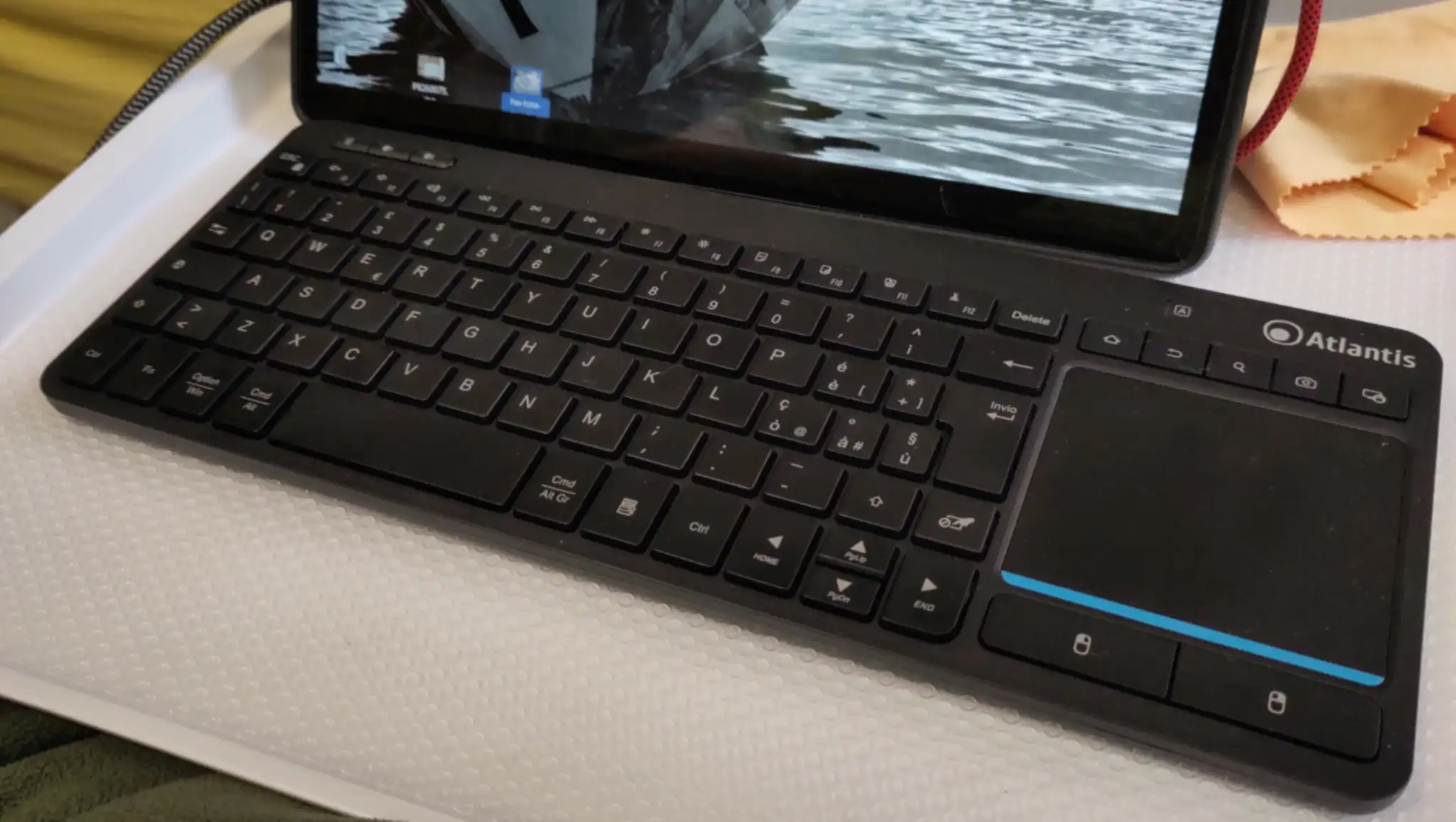
    Looking for a compact keyboard with an integrated touchpad, I found the Atlantis KD3616 keyboard.

    It is an Italian brand, and I’m not sure if this keyboard is available outside Italy.

    What sold it to me, was the promise of three finger gestures on the touchpad, which I use a lot in Gnome, to switch between desktops and open and close the overview.

    It does, kind of, but it also doesn’t.

    (more…)
  • Nextcloud CLI updater

    I use Nextcloud extensively to run my little micro-business, and updating has often been a hassle, with regular timeouts and “Gad gateway” messages.

    Then I discovered the Nextcloud CLI updater.

    You can update Nextcloud (and apps) directly from the command line on your server.

    Just move to the Nextcloud installation directory, execute the PHP script updater/updater.phar as the web-server user, and follow the instructions.

    $ sudo -u www-data php updater/updater.phar
    Nextcloud Updater - version: v32.0.1-41-g157dc25 dirty
    
    Current version is 33.0.0.
    
    Update to Nextcloud 33.0.1 available. (channel: "stable")
    Following file will be downloaded automatically: https://github.com/nextcloud-releases/server/releases/download/v33.0.1/nextcloud-33.0.1.zip
    Open changelog ↗
    
    Steps that will be executed:
    [ ] Check for expected files
    [ ] Check for write permissions
    [ ] Create backup
    [ ] Downloading
    [ ] Verify integrity
    [ ] Extracting
    [ ] Enable maintenance mode
    [ ] Replace entry points
    [ ] Delete old files
    [ ] Move new files in place
    [ ] Done
    
    Start update? [y/N] y
    
    Info: Pressing Ctrl-C will finish the currently running step and then stops the updater.
    
    [✔] Check for expected files
    [✔] Check for write permissions
    [✔] Create backup
    [✔] Downloading
    [✔] Verify integrity
    [✔] Extracting
    [✔] Enable maintenance mode
    [✔] Replace entry points
    [✔] Delete old files
    [✔] Move new files in place
    [✔] Done
    
    Update of code successful.
    
    Should the "occ upgrade" command be executed? [Y/n] y
    
    Setting log level to debug
    Repair step: ... <many lines>
    Repair info: ...
    
    Starting code integrity check...
    Finished code integrity check
    Update successful
    Maintenance mode is kept active
    Resetting log level
    
    "occ upgrade" finished
    
    Keep maintenance mode active? [y/N] 
    Maintenance mode disabled
    
    Maintenance mode is disabled

    I’ll never use the web interface again.

    Fediverse Reactions
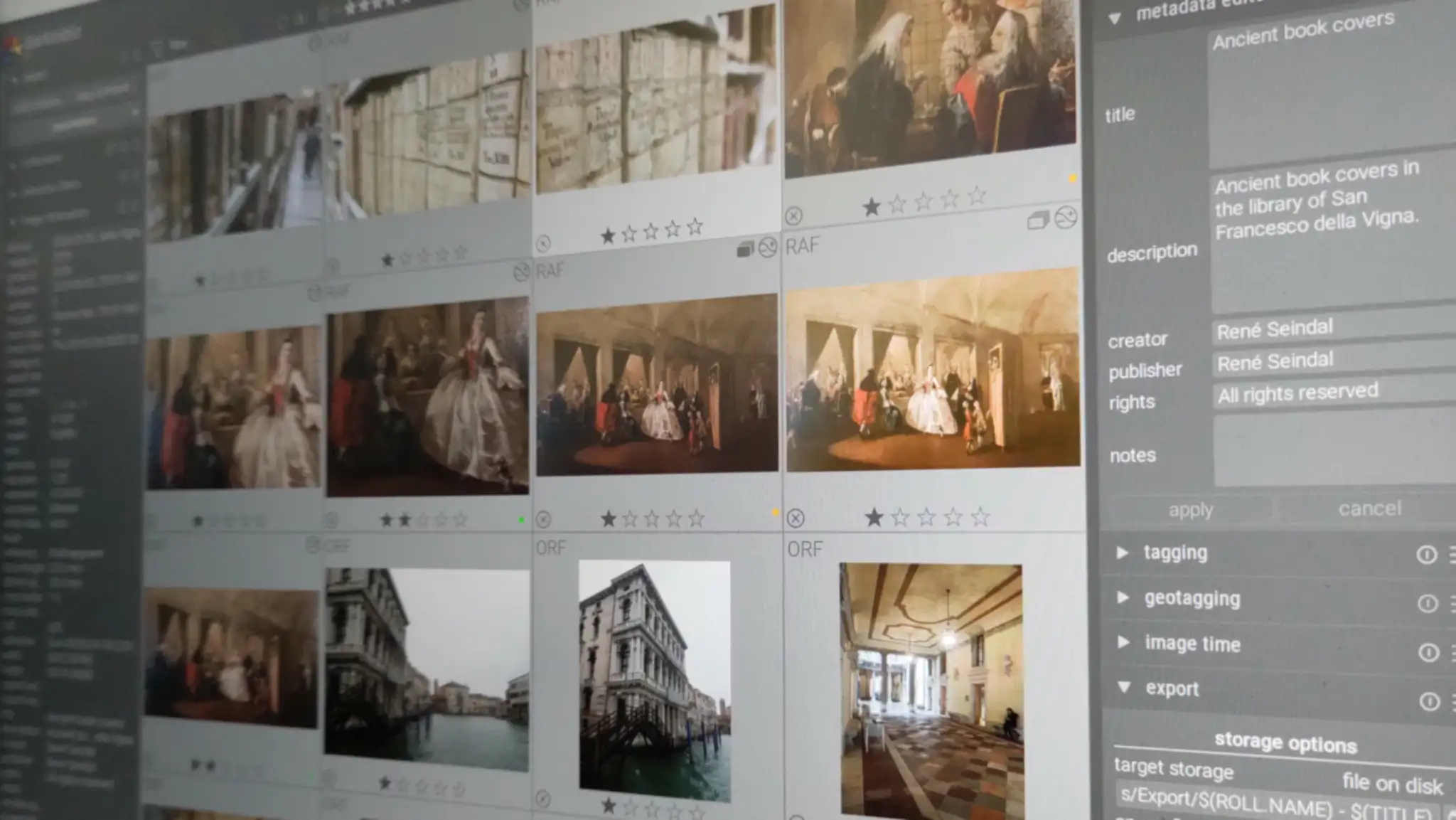
  • Moving Darktable files

    Moving Darktable files

    Moving Darktable’s from one place to another was surprisingly easy.

    1. Copy all the files to the new location.
    2. Edit darktablerc, changing all occurrences of the old path with the new.
    3. Delete library.db
    4. Open darktable (I use –configdir and –cachedir for various instances)
    5. Import all the photos from the archive, without copying the files.
    6. Enjoy!

    The file library.db contains all the photos, but the same data is in the sidecar files, which are read during import.

    Styles, presets and all the other things, are in either data.db or darktablerc.

    The file data.db might contain some paths, such as defaults for various widgets.

  • StarLabs StarBook Horizon

    StarLabs StarBook Horizon

    As computer prices are skyrocketing due to the as-of-now not yet burst AI bubble, I decided to get a newer and more capacious computer, as most of what I have is old, as in last decade. I might not be able to afford one next year.

    As I’ve been delighted with the StarLite mkV, and especially with the support from the StarLabs team, I pre-ordered a StarBook Horizon, which arrived yesterday.

    After twenty-five years with Debian, which StarLabs doesn’t offer pre-installed, I did the installation myself as soon as it arrived.

    (more…)
    Fediverse Reactions
  • Nextcloud markdown editor ­— CLI

    I use the rich text editor in Nextcloud a lot, and it can be opened through a sub-menu of the context menu in the GNOME file manager.

    You can only open one file at a time, and requires a few clicks and moving the mouse around.

    Now, if we could have a simple command to open the Nextcloud editor, for one or more file?

    Having a look at the GNOME Files extension, it wasn’t that complicated.

    (more…)
  • External disk with ext4 doesn’t auto-mount

    I have an external SSD in a NVME USB enclosure, with an EXT4 file-system. When I plug it in, it doesn’t auto-mount, and haven’t done so for a while.

    Most other external disks do auto-mount.

    I finally figured out why, and how to fix it.

    (more…)
    Fediverse Reactions
  • Sending newsletters in bulk

    Sending newsletters in bulk

    I have a newsletter — Venetian Stories about the history of Venice — with a couple of hundred recipients.

    For some time, I have managed that with a free WordPress plugin. One of those with a PRO version, and every update shifted some functionality over to the paid version.

    When I wanted to move the newsletter from my History Walks Venice site to a dedicated domain, there was no way of migrating the plugin data without moving to the PRO version. Several functions I had used for a long time, were no only available for payment.

    Confronted with these futile complications, I decided to return to basics.

    (more…)
    Fediverse Reactions
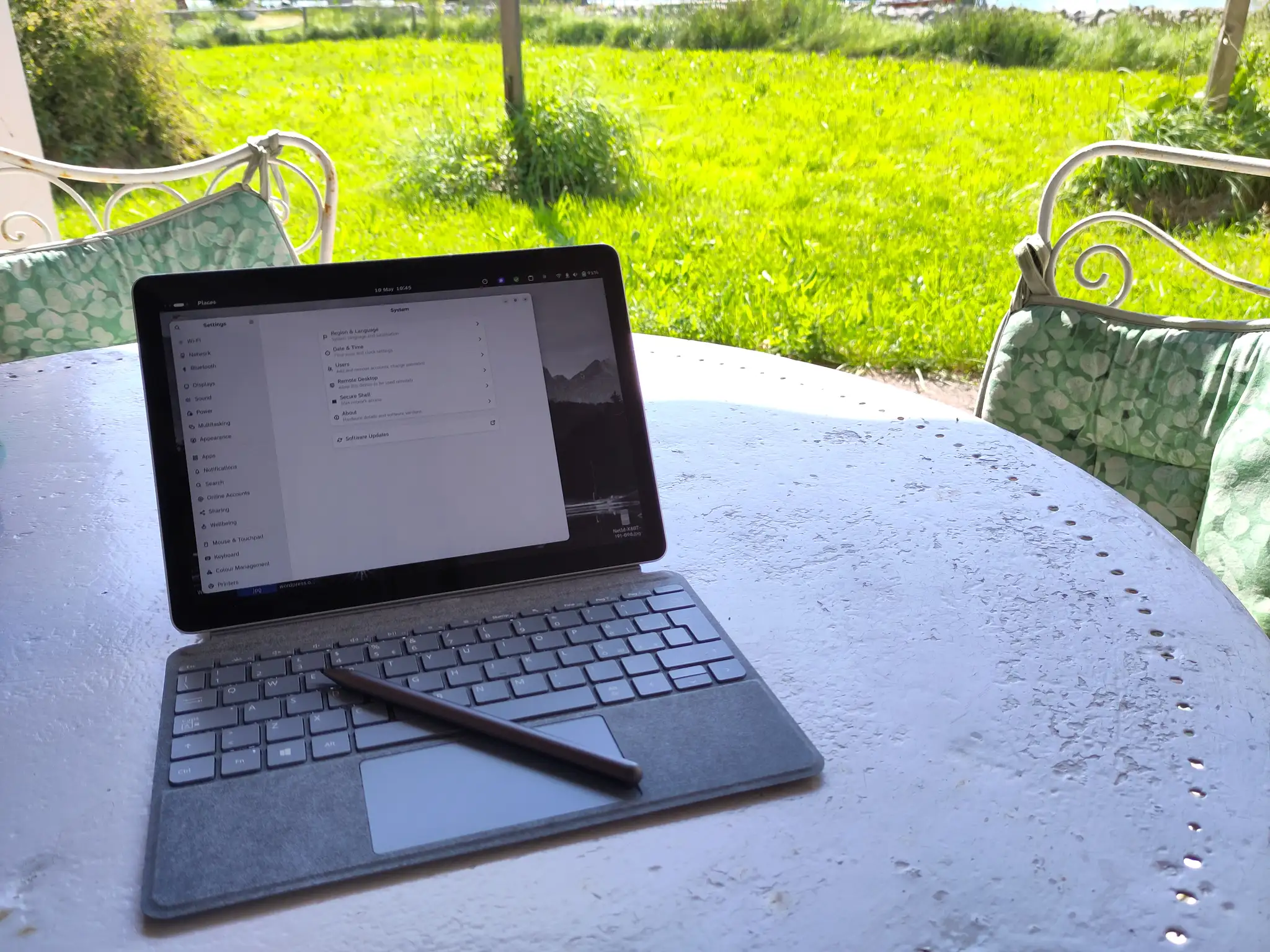
  • A tablet with Linux

    A tablet with Linux

    Something highly unusual has happened to me in the last few days.

    I have bought some Microsoft branded hardware, and I am actually delighted about it.

    As a die-hard Unix and Linux user for some forty years, that’s something.

    (more…)
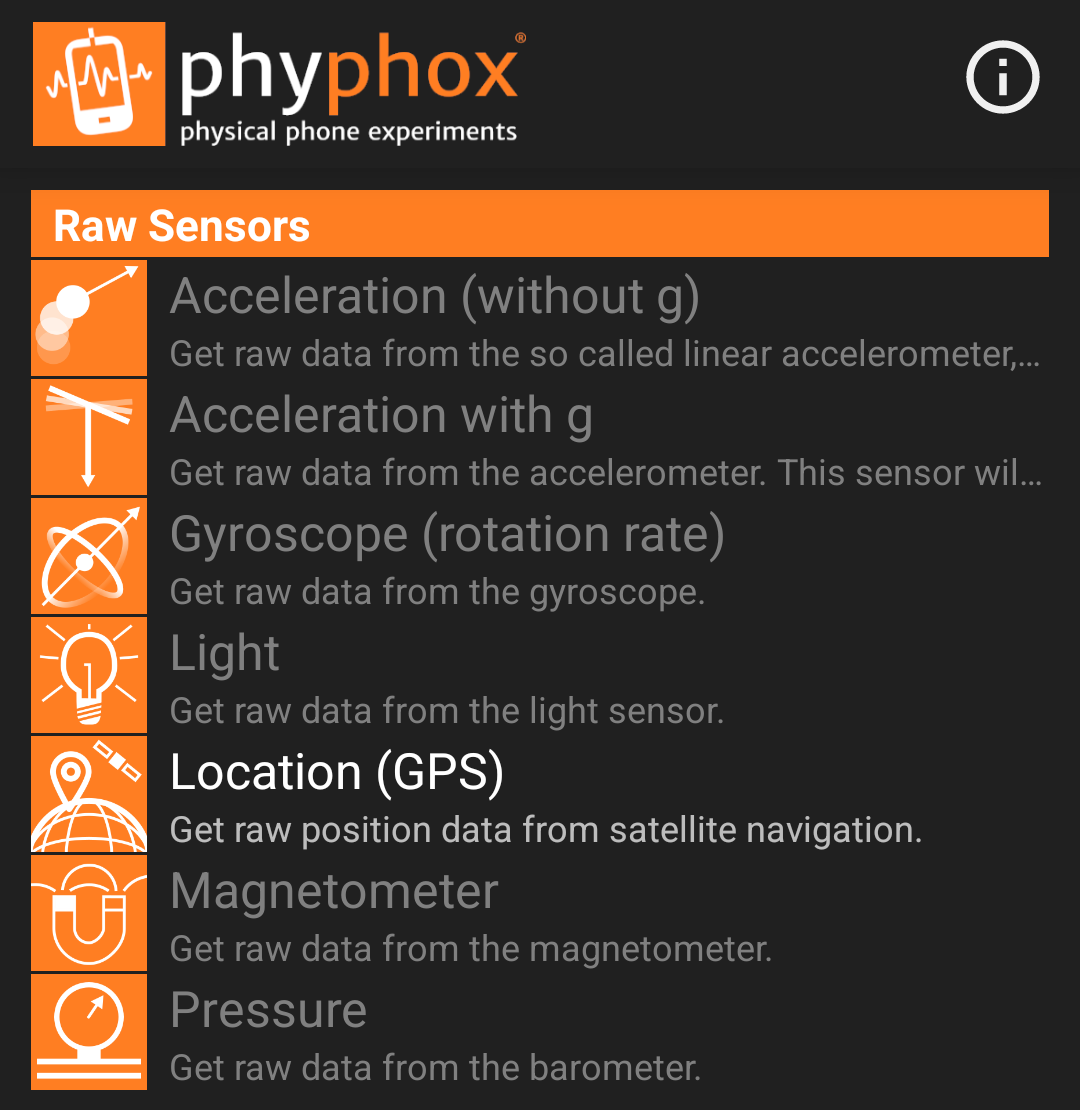
  • Fairphone 4 and sensors

    Fairphone 4 and sensors

    I bought a Fairphone 4 as a part of my project of de-googling my life.

    Playing with different operating systems, I somehow ended up with a phone where most of the sensors didn’t work, even if they did when I got the phone.

    (more…)
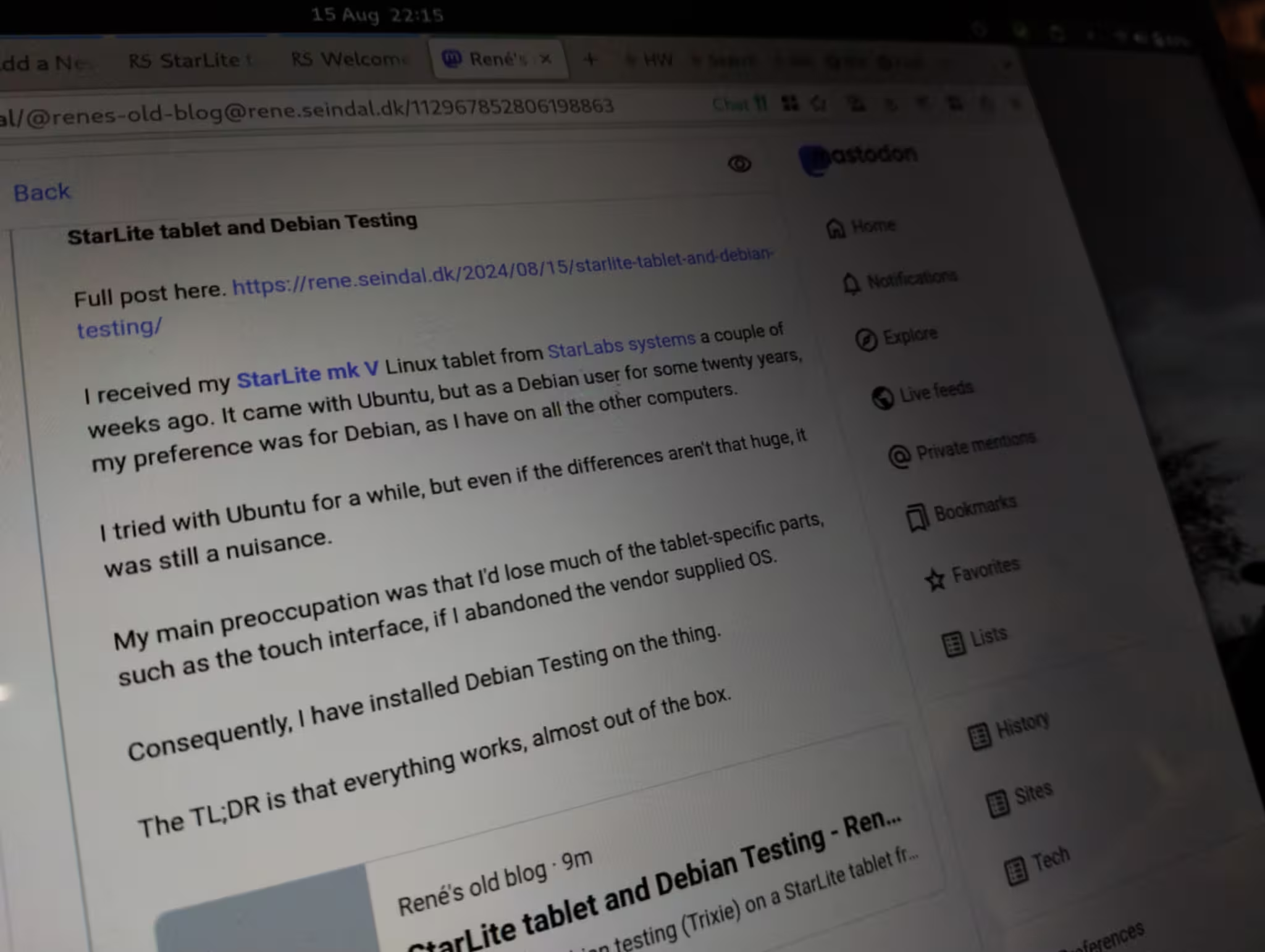
  • StarLite tablet and Debian Testing

    StarLite tablet and Debian Testing

    I received my StarLite mk V Linux tablet from StarLabs systems a couple of weeks ago. It came with Ubuntu, but as a Debian user for some twenty years, my preference was for Debian, as I have on all the other computers.

    I tried with Ubuntu for a while, but even if the differences aren’t that huge, it was still a nuisance.

    My main preoccupation was that I’d lose much of the tablet-specific parts, such as the touch interface, if I abandoned the vendor supplied OS.

    Consequently, I have installed Debian Testing on the thing.

    The TL;DR is that everything works, almost out of the box.

    Installation

    My main reference for the installation was Setup Debian 12 on the Starlabs Starlite mk V by Alexandre Martin. There were several apparently important tidbits in that post.

    I had bought a Debian rescue USB key with the tablet, which is a bootable live Debian system with the bookworm netinst installer.

    The normal installation procedure went without a hitch. The installer found the Wi-Fi adapter, listed SSIDs and allowed me to enter the passphrase.

    The grub bootloader installed by Debian overwrote the fancy branded bootloader from StarLabs Systems, but with Plymouth, I have a nice rocket hurling through space during boot 🙂

    Once the basic installation of stable was done, I changed ‘sources.list’ to testing, and updated again.

    Several reboots later, I installed all the software I need, which includes the GNOME desktop.

    Everything appears to work.

    Touch interface

    It is the first time I have a Linux computer with a touch interface, so I was a bit worried that it would cause me grief.

    It didn’t.

    With GNOME under Wayland, the touch screen just worked. I did nothing.

    Touching to move the cursor, clicking, scrolling by dragging, even multitouch gestures, like using three fingers sideways to change the desktop.

    GNOME has a simple on-screen keyboard, which does its job. It is not fancy like on Android, but it works and it appears when needed.

    Alexandre, in his blog post, had to do something to get automatic screen rotation to work, but with Debian testing, it just worked.

    Other hardware

    All the usual bits, sound, Wi-Fi adapter, Bluetooth, worked out of the box.

    For accelerated graphics with OpenCL, I had to install the OpenCL driver for the integrated Intel GPU.

    StarLabs Systems also sells a pen, which works flawlessly.

    Firmware updates

    The StarLite uses coreboot for BIOS, which on Ubuntu appeared updatable through fwupd, but it doesn’t seem to be on Debian.

    External display

    While on Ubuntu, I attached the tablet to a larger monitor, in a dual monitor setup.

    Using a USB-C to DisplayPort cable works just fine, with a 4K display.

    Mozilla Firefox

    To get touch scrolling and pinch to zoom to work in Mozilla Firefox, two environment variables are needed:

    MOZ_ENABLE_WAYLAND=1
    MOZ_USE_XINPUT2=1

    You can set them wherever is best for you, as long as they’re set before you start Firefox.

    Conclusion

    This was way easier than I had anticipated.

    And, the StarLite tablet is absolutely magnificent. It has a 3K touch screen, a very nice detachable keyboard with a touchpad, two USB-C ports which both and charge or attach an external display. There’s also a micro-SD card slot, headphone plug and a micro-HDMI port which I haven’t tried yet.

    The only auxiliaries I had to get, to make this work, was a USB-C to DisplayPort cable, and a cheap USB-C hub with power delivery, so I can attach USB-A cables and have an SD card reader.

    This one single piece of computer can be a tablet, a small laptop and a nice desktop computer, all in one, and, most importantly, running the same OS and software that I have everywhere else. No more fighting with Android to do basic tasks on a tablet.

    It’s not a foreign place like Android or (for me, surprisingly) Ubuntu. It’s like home, and it’ll do everything I need.
  • Changing owner of a calendar in Nextcloud

    I needed to change the owner of a shared Nextcloud calendar, preferable without causing too many problems for the other user of the calendar (my wife).

    Exporting and importing into a new calendar would do that, I feared.

    (more…)
  • A WordPress-Nextcloud writing workflow

    I spend a large part of my time working on my website, which is an essential part of my business. The site is about the history of Venice, considered very widely, and a lot of studying and drafting goes into it.

    My main website is self-hosted WordPress, but WordPress is not sufficient for what I do.

    The preparatory work going into writing for the website, requires space for literature, sources, images, maps, notes, brainstorming drafts and much more.

    If I tried to do that in WordPress, it would be an unwieldy mess of uploaded gigabytes of PDFs and other files, which I would have to keep locally too.

    A private Nextcloud instance is a much better solution.

    With Nextcloud, I have a web-interface to the files with a set of remote apps and functions available, but I also have all the files locally. The synching is fast enough to allow me to switch between remote and local apps without any real problems.

    The basic writing-publishing process

    As I do my History Walks in Venice, I sometimes get questions I haven’t got before, or see things I hadn’t noticed before.

    That will send me back to my books to find an answer. More often than not, I’ll stumble over something else in the process, which might be worth my time later. Consequently, I often have many articles in the pipeline at any one time.

    The process is more or less this:

    1. Reading notes, odd ideas and what not goes into Nextcloud Notes, either as plain text or Markdown formatted. There’s a handy Nextcloud Notes app for the phone, there’s the normal Nextcloud web interface, and the files are mirrored on my computers. I therefore have easy access to these files anywhere, and can edit them with just about anything.
    2. Once a theme for an article or newsletter coagulates, I move the note to the Drafts folder in Nextcloud, and start finding images, making maps, compiling lists, translating sources or whatever is needed to back up the article. Any writing here also happens in Markdown format. I use whatever program I feel like to edit these files. Common choices are the rich-text editor in Nextcloud, Emacs or Apostrophe, but it is a simple text file which can be edited with any editor.
    3. I don’t always know exactly where a text will go on the website, as I have several custom post-types: posts, articles, newsletters, translations, and so on. Often the text will therefore enter as a custom ‘Scratchpad’ post-type, where I can do all the preparations for publishing, such as uploading images, tagging names and places, entering the bibliography, adding footnotes and such.
    4. When I’m done, I move the ‘Scratchpad’ post to the section of the site where it belongs, and schedule it for publishing. If it’s a newsletter, there’s a separate procedure to send that to the subscribers.
    5. Once the article is published on the website, I add links to it from older existing articles, where relevant. For this, I use two custom plugins. One tracks the internal linking structure of the site, so I can easily see which posts link to which, and another which implements a unified search function across all post-types.
    6. The last thing to do is sharing the article on social media. I do this manually, as most walled garden social media has made automated procedures even more cumbersome.
    7. The last last thing, is to move the article draft folder to the folder for published posts, with the date of publishing added to the folder name. If, for some reason, I need to return to the article later, I can easily find everything I used there.

    WordPress and Markdown

    In the early phases, I write in Markdown, but when the text enters WordPress it becomes HTML.

    This is automatic. I very rarely need to do anything.

    When writing in Markdown, I only use the basics: headers, links, bold, cursive, lists, and quotes. I never add images to the Markdown files, and I usually also stay clear of tables.

    To move a Markdown text into WordPress, I simply copy the Markdown formatted text to the clipboard, and paste it into the Gutenberg on WordPress. The Gutenberg block editor will automatically convert Markdown formatting into Gutenberg blocks, and it does a decent job.

    I don’t mind the Gutenberg block editor. It is great for all the visual aspects of how an article is presented, but it doesn’t suit me well for the earlier phases of writing.

    Markdown is perfect for that.

    If I need a distraction-free environment, I can do that easily with the Nextcloud editor or Apostrophe. If I need to do complicated search and replace, or very repetitive operations, or sometimes just anything but churning out words, I use Emacs.

    Writing aids

    English is not my native language, so it is easy to make mistakes.

    Initially, I used the integrated writing aids of the WordPress plugin Yoast SEO. They are, however, rather limited, and they forced me to do more of my workflow in WordPress than I cared for.

    Searching for something else, I discovered LanguageTool, which I find more useful. It offers me many more corrections, and it works in more contexts.

    It works in almost anything browser-based, so it’s there in the Gutenberg editor, and in the rich text editor of Nextcloud. I can also use it in LibreOffice and Thunderbird, with the necessary extensions.

    Why self-hosted?

    It has always been my preference to run my own services. I simply don’t trust big foreign corporations with all my data.

    The problem isn’t as much the confidentiality of the material, which is very low, but the amount of time I have invested in collecting, organising and writing everything.

    It would be very disruptive for my work to get kicked out of my digital office and library by some AI algorithm which mistakes a Renaissance painting by Titian of a nude girl for child pornography,

    In principle, any such provider could shut me down for anything, even a copy of a painting. If that sounds ridiculous, be assured that more ridiculous stuff has happened, and that you’ll have no recourse.

    I would have to keep copies of everything offline somewhere anyway, so what’s the point.

    One last point, in these times of AI — which is an illogical abbreviation for Automated Plagiarism — I don’t want everything I do to be used to train the AI models of big corporations.