Category: Computers

  • Samsung Series 5 Ultrabook – NP530U3C-A08IT – Debian Wheezy installation

    Samsung Series 5 Ultrabook – NP530U3C-A08IT – Debian Wheezy installation

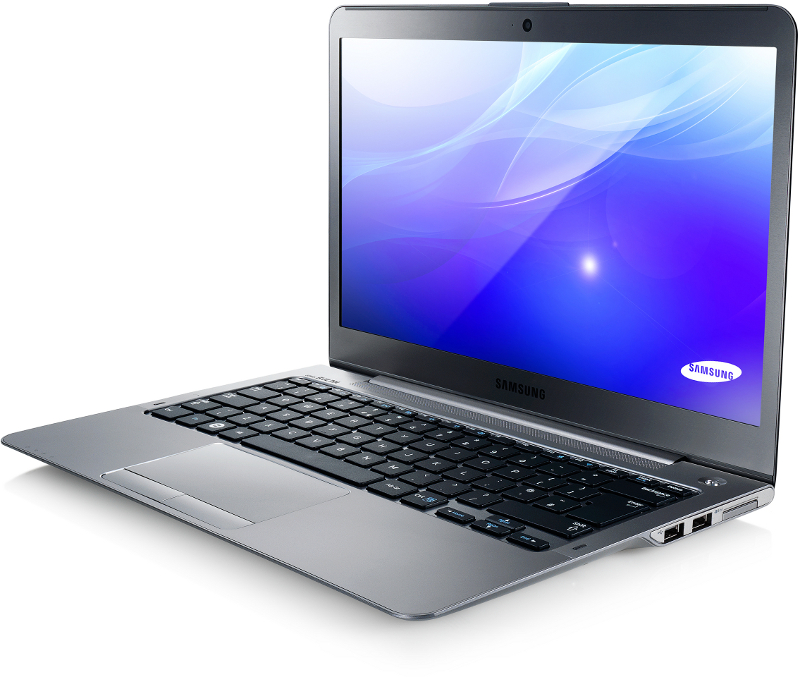
    I’ve bought a Samsung Series 5 Ultrabook, model NP530U3C-A08IT to be exact, and Italian version.

    Its a 13″ laptop, 1,5kg with a 128Gb SSD disk. I received with it another 120 Gb SSD disk, which I have used to install Debian Wheezy, keeping the original disk with a never booted Windows 8 apart.

    It is a medium sized laptop, measuring 31,5×29,9×1,7cm (W×D×H).

    Conclusions

    Most of the hardware works out of the box on a default Debian Wheezy installation.

    The spedifications of the laptop (Samsung link)

    • Intel® Core™ i5 3317U (1,70 GHz, cache L3 da 3 MB)
    • Intel HM76 chipset
    • Memory 4 GB DDR3 a 1.600 MHz – 1 SODIMM
    • Harddisk SSD 128Gb
    • Battery 4 cells 45Wh – circa 4 hours normal use
    • Display 13.3″ at 1366×768 (300 nit)
    • Touchpad ETPS/2 Elantech
    • Realtek  8168 gigabit wired network adapter
    • Intel Centrino Advanced-N 6235 wireless network adapter
    • Bluetooth 4 integrated
    • SD / SDHC / SDXC card reader
    • Webcam 1.3Mpixel

    What doesn’t work

    • Wired network (Realtek R8168) has caused me some trouble, and doesn’t seem to register when there is a link. It did work during install, though.

    What works mostly

    • Most of the special keys on Fn-XX works, most notably the keys for brighness, video out and sound control, but a few don’t react or send some random character continuously if pressed, These are the settings key on Fn-F1, the fan control key on Fn-F11 and the Wireless kill-switch on Fn-12.

    What works

    Practically everything without any effort:

    • Graphics works with acceleration (intel driver) without any configuration (I use Gnome 3),
    • Wireless networking works flawlessly with the necessary firmware installed (iwlwifi driver),
    • Sound works without any set up,
    • Bluetooth works (pairing, transfer and tethering),
    • Battery reports 4 hours usage on a full charge which seems mostly correct,
    • Touchpad  works (tapping, two-finger scroll, edge scroll),
    • Webcam works (tried using the Gnome application Cheese),
    • HDMI out works using the Fn-F4 keys to switch output and resolution,
    • Card reader works (loading photos from a camera).

    I’m very content with my acquisition.

    Installation

    I installed Debian Wheezy, using the Debian Installer 7,0 RC1.
    The laptop being an Ultrabook sold with Windows 8, it is equipped with an UEFI boot system and Secure Boot which allows only operating systems digitally signed (by Microsoft) to boot. Thus, first thing to do is to enter the BIOS (press F2) and disable Secure Boot. I also switched it from UEFI to traditional BIOS boot, as there has been stories about laptops being bricked by booting Linux due to a but in the UEFI implementation of the firmware.

    Installation worked fairly smoothly once the BIOS was set up. Booking from a netinst image on a remote DVD drive the only hitch was missing firmware for both the iwlwifi wireless network driver and for the Realtek R8168 wired network driver, but in both cases the installed asked for the specific files needed, and I proceeded to download (on another computer) the firmware Debian packages firmware-iwlwifi and firmware-realtek to extract the relevant files, put them on an USB stick which I then connected to the laptop being installed. The process went smooth and I did the net install using the wired driver (which, however, doesn’t seem to work on the installed system).

    The installation target disk was unpartitioned, so I let the installer decide which gave me a root, swap and /home partition.

    Various hardware information

    X Windows

    Basic X.org configuration was automatic.

    Links

    • Sansung Series 5 Ultra (Italian)
    • Samsung Series 5 Ultra specifications (Italian)
  • Installing newer ALSA driver on an Asus Eee Pc 1000H

    Installing newer ALSA driver on an Asus Eee Pc 1000H

    I have Debian testing on my Asus Eee Pc 1000H with Linux 2.6.26.  The ALSA driver therein doesn’t fully support the Eee Pc 1000H (and  therefore neither the 901).Sound playback is fine, but the microphone doesn’t work.

    Installing Linux 2.6.28 was a no-go as the drivers for the wireless isn’t available there, so I decided to install ALSA 1.0.19 to that.

    The explation is from the Debian Eee Pc wiki.

    First make sure you have module-assistant and friends installed and setup

    aptitude -r install module-assistant
    module-assistant prepare

    The ‘prepare’ command will download additional packages needed to compile modules for the running kernel.

    Now download the latest ALSA sources, which I got from Experimental

    aptitude -t experimental install alsa-source

    To build the driver all you need to do is

    module-assistant build alsa

    and wait for the compile to finish.

    Afterwards you’ll have a .deb file in /usr/src ready for installing.  I used dpkg directly, but

    module-assisstant install alsa

    will do it for you too.

    I simply rebooted to make sure all old modules were removed and the new ones loaded. It can be done without a reboot.

    Most mixer inputs and outputs change name with the new driver, so the ACPI hotkey scripts need a bit of updating. Its a bit nitty-gritty where you need to edit several scripts by hand, and its all described in the wiki.

    Now I just need to get Ekiga to do video calls to Gizmo on my  wife’s macbook.

    Fediverse Reactions
  • Cpu Frequency and Gnome Power Manager

    I’ve installed Debian with Gnome on my new Asus EeePC 1000H, and for some reason the Gnome Power Manager preferences wouldn’t let me decide on what cpu frequency scaling governor I wanted to use. I’m trying to squeeze as much time as I can out of the battery, so I wanted it to be “powersave” when on battery. The options weren’t there. After a bit of digging I fould a gconf key,
    /apps/gnome-power-manager/ui/cpufreq_show
    which, when set, causes the options to be shown. It’s a bit annoying with all these hidden preferences but at least we have gconf-editor 🙂
  • Bluetooth Audio Headset

    Bluetooth Audio Headset

    I have a Philips SHB6100 bluetooth headset which I have only used with my mobile phone. A long time ago I tried getting it to work with Debian, but it was too much work for too little. Today I tried again, and things has changed quite a bit. I had it working in less than five minutes. The explanations are here: http://wiki.bluez.org/wiki/HOWTO/AudioDevices. First I put the headset in pairing mode, which is done by pressing the “on” button continuously until the led blinks red/green alternately. Then the command “hcitool scan” will reveal the BT address of the headset. It looks like a MAC address. Add this to your ~/.asoundrc:
    pcm.bluetooth {
       type bluetooth
       device 00:11:22:33:44:55
    }
    Replace the address with what “hcitool scan” showed for the headset. This is it. Play an song with
    mplayer -ao alsa:device=bluetooth yoursong.mp3
    and the Gnome bluetooth applet should prompt you for a pairing code for the headset, which is “0000” for the Philips headset. I use Banshee for my music, and to get Banshee to use the headset, first close it down, then run this command:
    gconftool -t string -s /system/gstreamer/0.10/default/musicaudiosink "alsasink device=bluetooth"
    and restart Banshee. It will now play to your headset. The only thing missing now is an easy GUI way for those who don’t want to edit configuration files. In my Gnome setup I have a “System | Preferences | Multimedia Systems Selector” but it doesn’t handle the music player setup or anything bluetooth at all.
  • Asus Eee Pc 1000H with Debian Lenny (testing)

    Asus Eee Pc 1000H with Debian Lenny (testing)

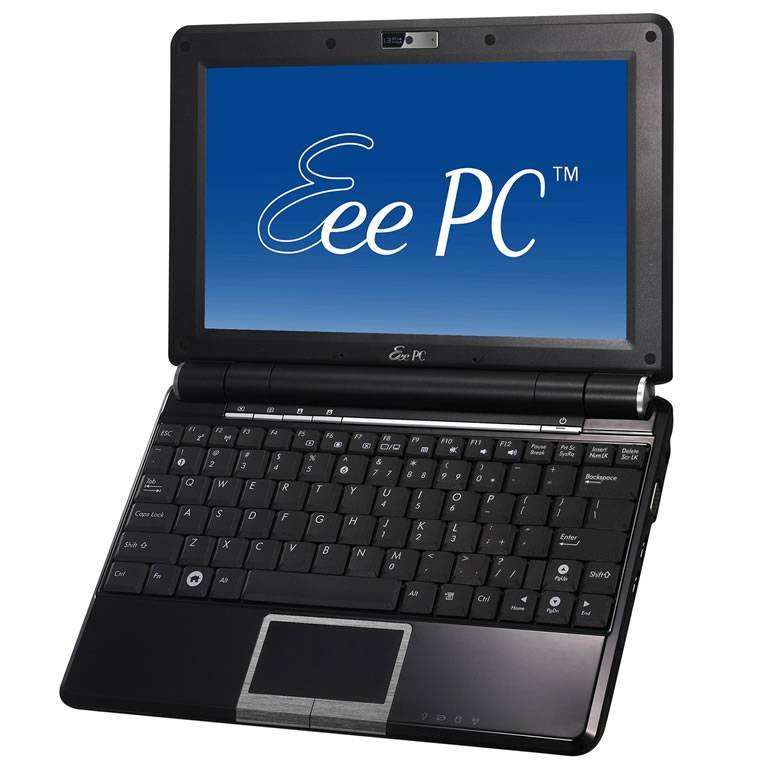
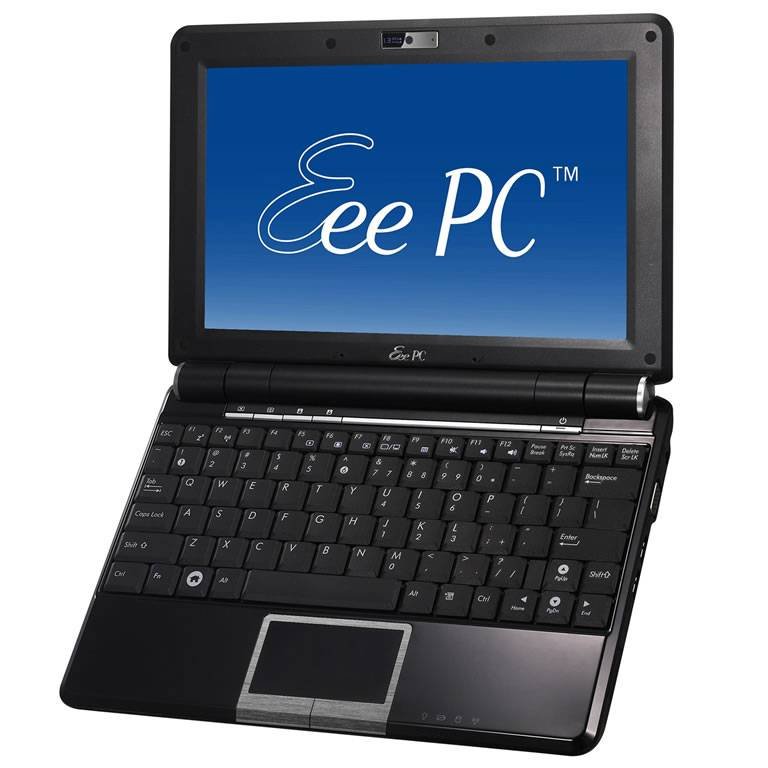
    I have bought an Asus EeePc 1000H which is one of the new popular netbook – a very small and light weight notebook. I chose the Asus EeePc 1000H for several reasons:
    • I travel a lot, often by motorcycle and kayak, and need something compact and lightweight for mail, internet, blog updates and social networks;
    • initially I wanted the EeePc 901, but its being discontinued and it costs almost the same as the 1000H, which has a hard disk and a larger keyboard;
    • though delivered with Windows XP, the hardware is quite Linux friendly and almost identical with the 901 which were sold with Linux;
    • its small and cute (even my wife says so).
    The specs are:
    • Intel Atom N270 dual core CPU,
    • Intel Mobile 945GME chipset,
    • 1 Gb DDR2 667MHz RAM upgradable to 2Gb,
    • 160 Gb SATA harddisk,
    • Six-cell LiOn battery 6580 mAh,
    • 10″ WVGA display at 1024×600,
    • ElanTech touchpad,
    • RaLing RT2860 wireless network adapter – IEEE 802.11bgn,
    • Attansic Technology L1 Gigabit network adapter,
    • Broadcom BT-253 internal USB bluetooth adapter,
    • Alcor Micro SD/MMC Card Reader,
    • Genesys Logic USB 2.0 webcam 1.3Mpixel.
    It is a fairly small laptop, measuring 27×19×3cm and weighing 1.45kg which is a bit more that I had hoped (the 901 is less than 1kg) but it is OK, as I won’t have to bring an extra USB disk for additional storage.

    Conclusions

    I have installed Debian testing/lenny on it, through the Debian Eee Pc projects installer. It is a specialised installer which does a slightly different installation and configuration, but the resulting system is a normal Debian system. Most parts of the netbook work immediately with little or no manual configuration after a base install, but there are a few parts that doesn’t or that are a bit unstable. Most of these seem to have a solution on the way. An install through the Debian Eee Pc installer of Debian Testing (lenny) with a Linux 2.6.26 kernel leaves these parts non-functional:
    • Front microphone doesn’t work (should be fixed in the latest ALSA release, included ibn Linux 2.6.27);
    and these only partly functional:
    • Wireless network driver only works with certain setups (for me, open network and WPA/PSK work, WEP doesn’t);
    • Touchpad is working with a generic driver which doesn’t support all the functions of the hardware;
    and these require an extra effort to get fully functional:
    • Keyboard hotkeys (editing a configuration file)

    Installation

    The installation procedure was more or less as specified on the Debian Eee Pc Wiki. The computer came with Windows XP preinstalled and with the disk partitioned in a particular way. Since I’ve paid for that Windows installation, I’d like to retain it in case I should need it later. The harddisk was initially partitioned like this:
    1. Windows XP system 75 Gb (type 7 – HPFS/NTFS)
    2. User data 60 Gb (type 7 – HPFS/NTFS)
    3. Windows accelerated boot 8Gb (type 0x1c – Hidden W95 FAT32)
    4. EFI partition for the BIOS “Boot Booster” 40Mb (type 0xef)
    The partitions 1 and 4 would be needed for Windows XP and the BIOS, and I wasn’t sure what partition 3 was for, so I decided to leave it untouched. I think it is for an accelerated boot of Windows XP where they make a hibernation type snapshot at boot time which can then be used at subsequent boots to speed up things. For Linux I would need a root, a swap and a user data partition, so I decided on this partitioning scheme:
    1. Windows XP system 10 Gb (type 7 – HPFS/NTFS)
    2. Extended partition 125Gb (type 5 – Extended)
      1. Linux root 8Gb (type 83 – Linux)
      2. Linux swap 1Gb (type 82 – Linux swap)
      3. Linux home 116Gb (type 83 – Linux)
    3. Windows accelerated boot 8Gb (type 0x1c – Hidden W95 FAT32)
    4. EFI partition for the BIOS “Boot Booster” 40Mb (type 0xef)
    Starting the Debian Eee PC installer was quite easy. I downloaded the image, copied it to an SD card, inserted it into the card reader and booted while pressing ESC so the BIOS asked which device to boot. The installer is the normal Debian lenny installer, only with a payload of special modules for the EeePc specific hardware, which for now include both wired and wireless network adapters and ACPI functions. Before starting it is a good idea to disable “Boot Booster” and “Quick Boot” in the BIOS. Otherwise it is quite likely the system will just launch you into Windows XP so fast you have little time to press ESC for the boot device menu or F2 to enter the BIOS. I had to start the installer several times to shrink and resize the Windows XP partitions and setup my own partitioning scheme as shown above. The first several boots into the Debian installer was to shrink and resize the Windows XP installation, and setup my partition scheme. I repeatedly took the installer up to the point where it wants you to partition the harddisk, then pressed Alt-F2 to get a shell. The first time I used ntfsresize to shrink the Windows XP NTFS filesystem from 75Gb to 10Gb. Second time was to resize the actual Windows XP partition using fdisk, followed by a boot to Windows XP to make sure the installation was still bootable. Then the third time to setup the Linux partitions, and only afterwards did I let the installer continue and do the actual installation. The Debian installer is so easy these days its almost boring. I only had to answer a few questions, enter some passwords and select what I wanted of software on the computer. I let it install all of the Gnome desktop environment, which was probably a mistake, since I had a bit of work afterwards reducing it to only the parts I actually wanted. I have no use for Windows terminal services or remote desktop systems, or all the CD/DVD ripping and mastering software I had installled automatically.

    Hardware walk-through

    CPU – Intel Atom N270 1.6GHz works out of the box with both cores available and CPU frequency scaling activated. Disk – the SATA disk works as expected. Sound – works except for the front microphone, which is supported in the next version of ALSA, included in Linux 2.6.27. SD card reader – works. USB – works out of the box. Wired network – the Attansic Technology L1 Gigabit network adapter uses an “atl1e” driver which works without any problems noted. Wireless network – works partially with the rt2860sta driver included in the Debian Eee Pc install. It works for me with a WPA/PSK access point, and with an open network, but not without some problems. The driver drops the association at high throughput and subsequently fails to re-associate to the access point without a manual intervention. With a WEP setup it associated with the access point, but failed consistently to get an IP address from the DHCP server. There is no hardware kill switch. Bluetooth – the internal USB adapter works out of the box. There is not hardware kill switch. ACPI – this is governed by a special eeePc driver included in the Debian Eee Pc installer. It seems to support everything: power switch, lid, extra keys, battery, cpu, suspend states etc. Video out – not yet tested Video – Intel Mobile 945GME chipset, which works with X.org. It is automatically configured by the Debian Eee Pc install, so X windows works immediately, compositing included. Touchpad – works partially. It is currently controlled by a generic driver, which doesn’t support all the functions of the hardware. The touchpad works as such, with tapping and the two buttons below it. The middle mouse button can be activated by a two finger tap, and a scroll wheel simulated by a two finger drag. A three finger tap works as a right button click, but it is almost impossible to get right on the small touchpad. Extra keys – works with initialisation – see later “Hotkeys” Suspend – both suspend and hibernate works through the Gnome Power Manager. I have uswsusp installed, but I don’t know if the Gnome Power Manager uses the kernel suspend functions or uswsusp. Sometimes bluetooth disappears after a resume, but I still haven’t figured out why. You need to belong to the “powerdev” group to get full Gnome Power Manager functionality. Webcam – the necessary Video4Linux drivers are automatically installed, and the camera seems to work. I can get mplayer to show me live video from it. Keyboard – while it has nothing to do with Linux, I do have a few grievances about the keyboard. It has at least two deficiencies. While is has a nice and usable size, the right shift key is placed in a very annoying position, to the right of the “up” arrow key, which I alway hit by mistake. Also, the shift lock key has no status indicator anywhere, so you cannot see if shift lock is on or off, except trying to type something.

    X Windows

    Basic X.org configuration was automatic. The X.org server uses the “intel” driver for the Intel 945GME graphics chip set. It is by default set up with EXA acceleration, but the Debian Eee Pc wiki states that using XAA might be better, and my experience confirms it. It feels quite a bit snappier with XAA, especially when scrolling in Firefox. DRI was configured automatically. The touchpad it is an Elantech touchpad but it is not recognised as such by the kernel. It detected as a “ExplorerPS/2”, not as a proper touchpad. The funny thing is, however, that the touchpad still works to some degree. It reacts to movement and taps, there is a scroll wheel area on the right side of it, and a two finger tab becomes a middle click. A three-finger tap becomes a right click but it is very hard to reproduce reliably. There seems to be a driver for the touchpad in the working, but it’s currently only semi-functional. I haven’t delved deeper into this, as it does work. Compiz was only an “aptitude install compiz” away. All the necessary prerequisites were taken care of by the Debian Eee Pc installer.

    Hotkeys

    The keyboard has some special keys, which are handled by a special eeepc ACPI module. I had to edit the /etc/default/eeepc-acpi-scripts file to get the sound volume keys to work properly. I needed to set the variables
    VOLUME_LABEL='Master'
    HEADPHONE_LABEL='Headphones'
    Apparently the default setup is for the latest Alsa release, but not the one used by the 2.6.26 kernel.

    Major outstanding issues

    • Front side microphone is not working,
    • Touchpad not fully supported.

    Links

    Fediverse Reactions
  • Microsoft® SilverLight

    Microsoft® SilverLight

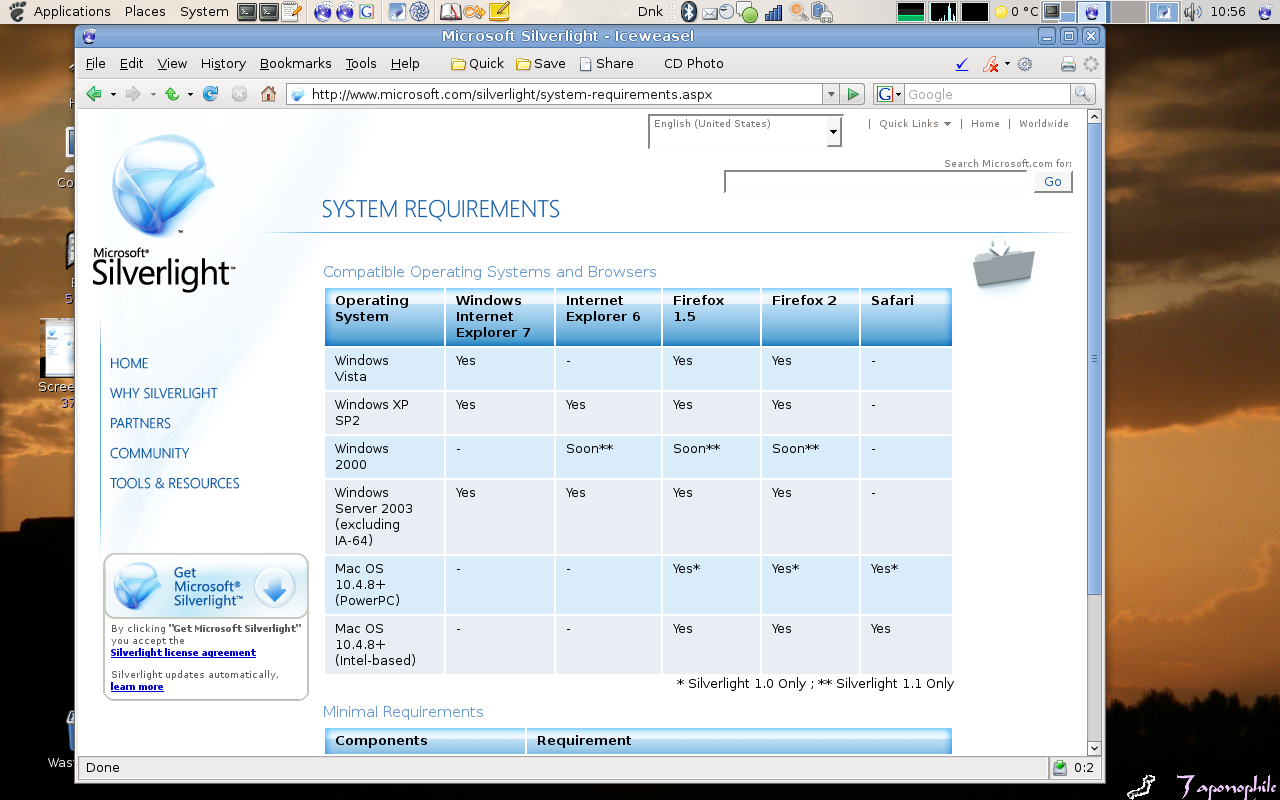
    I just ran into a site that required Microsoft® Silverlight, but I cannot install it: Microsoft Silverlight thought it provides “Compelling Cross-Platform User Experiences” Microsoft Silverlight Apparently “cross-platform” is a rather restricted concept at Microsoft, meaning “works somewhat on a Mac too” Microsoft Silverlight
  • Mass upload to WordPress

    I often make photo entries on my other non-technical blog, and it is such a pain having to upload photo after photo in two sizes. Yesterday I discovered the Upload Unzipper which implements uploads of zip-files which are then unpacked on the server and treated as individual uploads. Fantastic time saver.
  • Aptitude

    I’ve been using dpkg, apt-get and apt-cache for a long time, but since I got a new laptop with a fresh install of Debian testing I have been playing with new toys. One is aptitude. I found the curses-based interface obnoxious, but after some time I came to like the command line interface. It has some very nice abilities. It integrates debfoster functionality as it automatically uninstalls unused dependencies of packages being removed. That’ll be a great help in maintaining a clean uncluttered system. The search function is really useful, adding a lot of possibilities that used to require several programs. Here are few examples: Search for all packages whose description matches “syncml”:
    aptitude search ~dsyncml
    Search for installed packages depending on “rsync”:
    aptitude search ~Drsync~i
    The search patterns are regular expressions, so the above will actually search for an installed package depending on some other package whose name contains the substring “rsync”. Simpel terms search on the package names, such as:
    aptitude search '^rdiff'
    Aptitude has a silly little easter egg. Try “aptitude moo” and then add “-v” options one at a time.
  • Emacs wiki

    I just stumbled upon http://www.emacswiki.org/cgi-bin/wiki/SiteMap, which looks like a very nice place. I found a newer version of longlines.el, for example.
  • Converting AAC audio files to mp3

    This command will convert an AAC audio file to an mp3 audio file:
    ffmpeg -i input.m4a -acodec mp3 -ac 2 -ab 128 output.mp3
    Batch conversion can be done with
    for i in *.m4a; do
        ffmpeg -i "$i" -acodec mp3 -ac 2 -ab 128 "${i%m4a}mp3";
    done
    Sometimes it really is simple 🙂
  • Longest Common Prefix in perl

    I can’t help finding this slightly elegant. Unfortunately I no longer remember where the idea came from.
    #!/usr/bin/perl
    use strict;
    use warnings;
    sub longest_common_prefix {
        my $prefix = shift;
        for (@_) {
    	chop $prefix while (! /^$prefix/);
        }
        return $prefix;
    }
    print longest_common_prefix(@ARGV), "
    ";